Vendor Check-In is integrated directly with Baseline to manage vendors entering the store to sell clothing and connect directly to the employee-facing Vendor Queue.
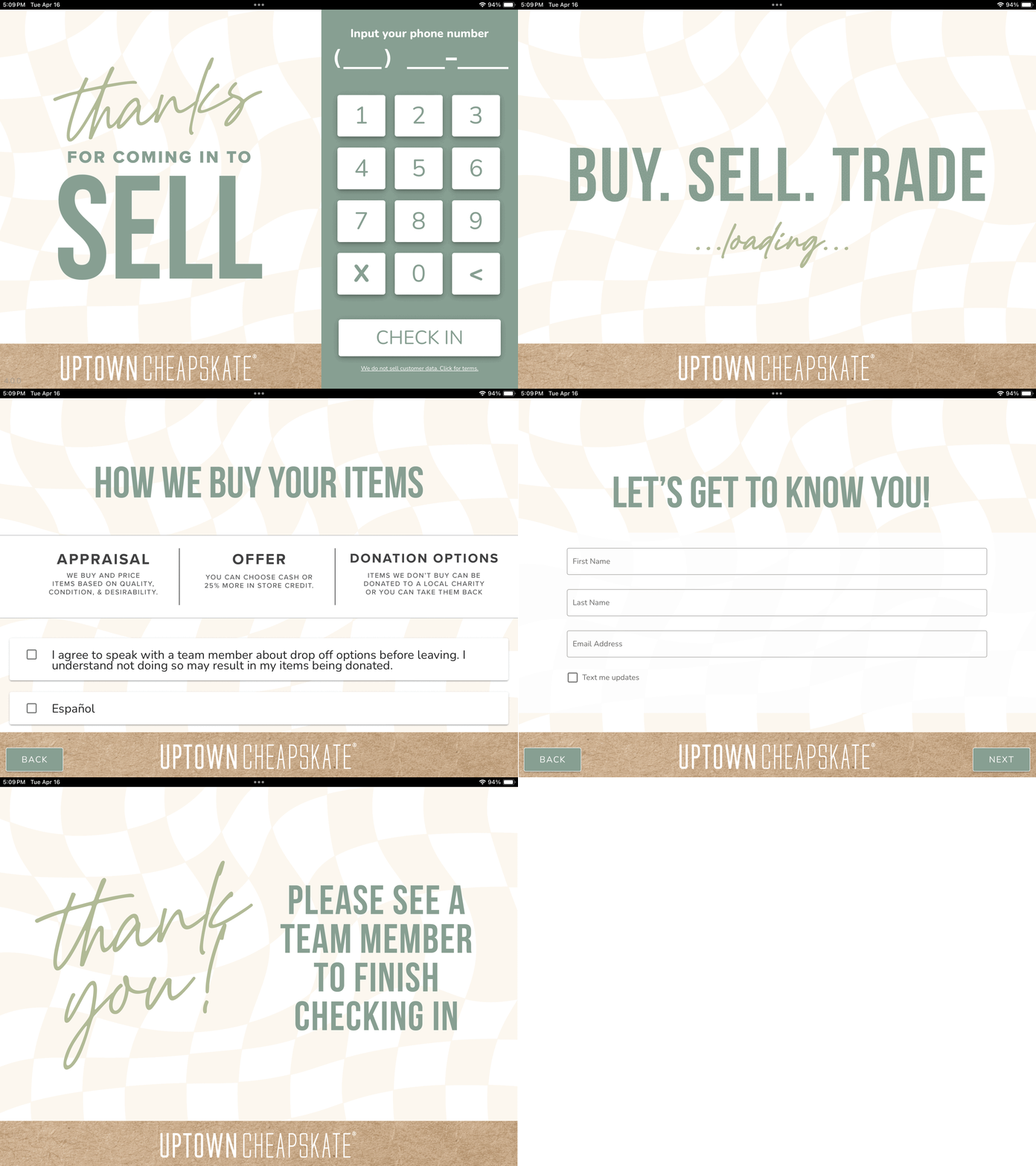
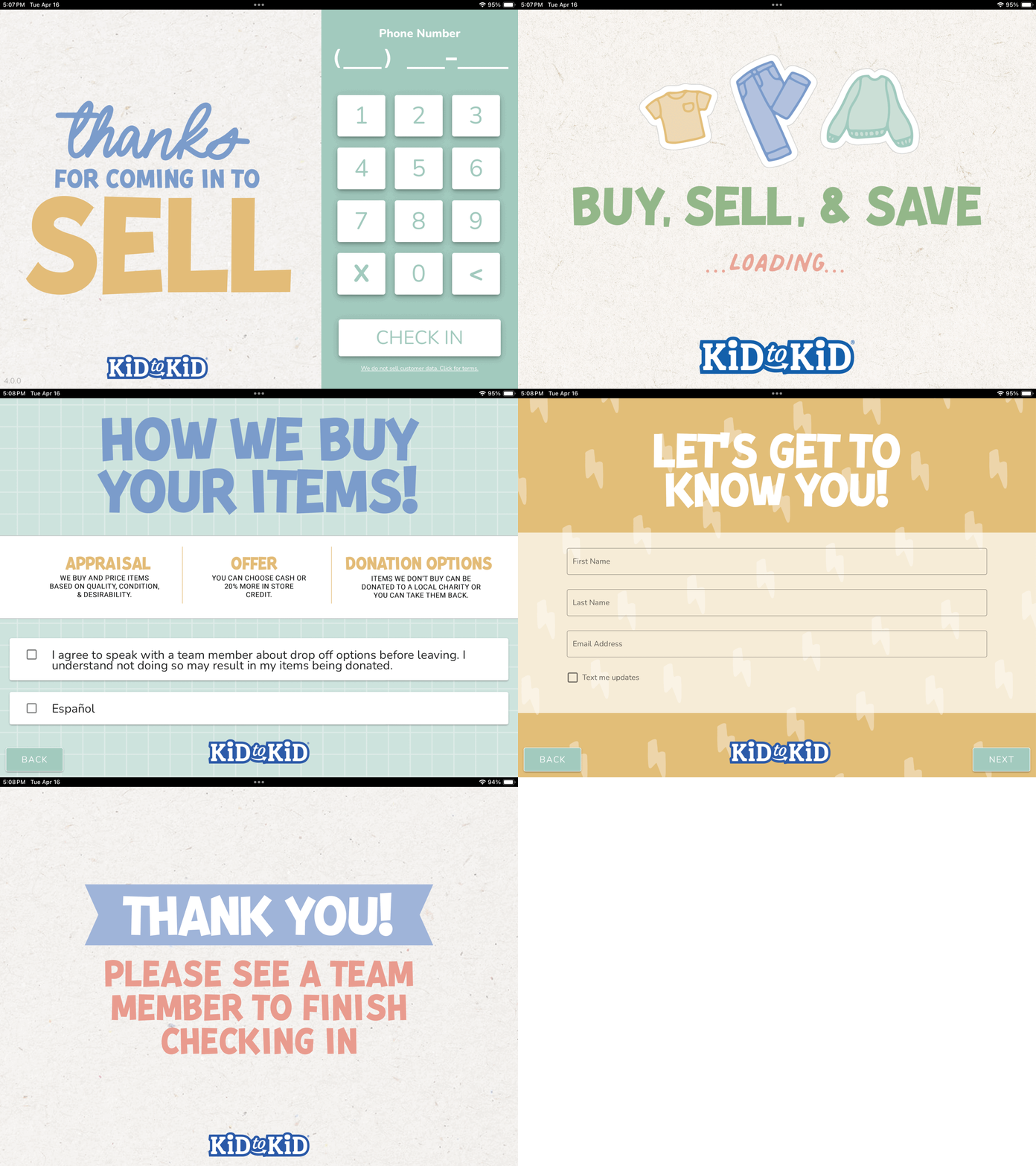
Before Beginning
- This is designed to work with iPad 9th generation or newer.
- To check the generation of your iPad navigate to Settings > General > About > Model Name
Quick Links
All URLs must be accessed from a device on the store network. You can also find these links in Baseline by going to Settings > Check-In.
| Kid to Kid | Uptown Cheapskate | |
| Vendor Kiosk (Customer Facing) | http://192.168.1.51:8080/kiosk | http://192.168.1.151:8080/kiosk |
| Vendor Queue (Employee Facing) | http://192.168.1.51:8080/checkin | http://192.168.1.151:8080/checkin |
Step-by-Step Guide
Step 1: Add the kiosks to the iPad's Home Screen
- Open the Vendor Kiosk URL for your store type in Safari on your customer-facing iPad
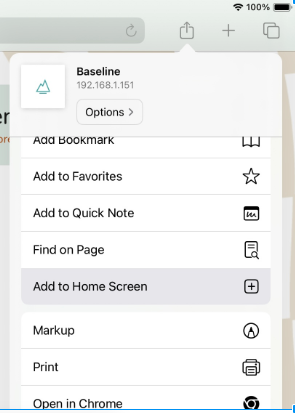
- Tap the Share icon
- Select Add to Home Screen
- Name it something staff will easily recognize (e.g. "Vendor Check-In")
- Confirm the new icon appears on the home screen and opens the correct URL
Step 2: Hide the Safari Toolbar
- Navigate to the kiosk URL in Safari
- Tap the aA or page settings icon in the top left of the address bar
- Tap Hide Toolbar
The address bar and toolbar will no longer be visible to customers. To show it again, tap the bottom of the screen and select Show Toolbar.
Step 3: Configure your Vendor Check-In flow
- In Baseline, go to Settings > Check-In
- Under Vendor Check-In, select your preferred flow:
- Standard Check-In — name and standard fields only
- With Address — adds language preference and requires address input
- Toggle any additional settings as needed (Government ID Required, Hide Donation Option)
Step 4: Run a Test Check-In
- Open the Vendor Kiosk URL on the customer-facing iPad
- Complete a test check-in through the full flow
- On the employee-facing Check-In Manager, confirm the new check-in appears as a teal bubble
- Confirm details and complete the check-in to verify the full workflow
Optional Step 5: Lock other iPad features
- As a final additional step, one can go into the iPad's "Settings -> Accessibility" and enable "Guided Access" to set the iPad to only have access to the browser and lock out the other iPad features. Set a pin code that would be easy to remember like 123456. Then in the Safari browser at the kiosk page, hit the home button or side button 3 times (depending on iPad model) to engage Guided Access. It can be disabled by pressing the home button or side button 3 times and entering the pin code.
- If one forgot the Guided Access pin code, one can restart the iPad and break out of guided access one of the following two ways, (Apple Guide)
- If there is a home button, press the side power button and the home button until the Apple logo appears
- If there is no home button, press the volume up button, then the volume down button, then press and hold the side power button until the Apple logo appears.
- If one forgot the Guided Access pin code, one can restart the iPad and break out of guided access one of the following two ways, (Apple Guide)
How it Works (Day to Day)
- Vendors check in on the customer-facing iPad at the /kiosk route
- Employees monitor incoming check ins at the /checkin route
- New check ins immediately appear as teal bubbles
- Employees confirm details and complete the check in process
Digital signatures are collected from every vendor at check in. The signed contract is automatically attached to the associated Vend and can be found there for reference.
Settings
Configure settings in Baseline under Settings > Check In
- Flow Type (Standard, or Standard with Address)
- Require Government ID
- Hide Donation Option
Troubleshooting
Website Cache
To clear the website cache on Safari:
- Open Settings on the iPad
- Scroll down and tap Safari (or use the search option)
- Tap “Clear History and Website Data”
- Confirm
Note: When clearing the cache, you will typically have to re-enter and save any previous websites or settings within Safari.
JavaScript Error
If you receive a JavaScript error after navigating to the URLs:
- Open iPad Settings > Scroll to Apps (bottom of the menu bar) > Locate and tap Safari > Scroll to and tap Advanced (bottom of the page) > Ensure "JavaScript" is toggled on.
Was this article helpful?
That’s Great!
Thank you for your feedback
Sorry! We couldn't be helpful
Thank you for your feedback
Feedback sent
We appreciate your effort and will try to fix the article