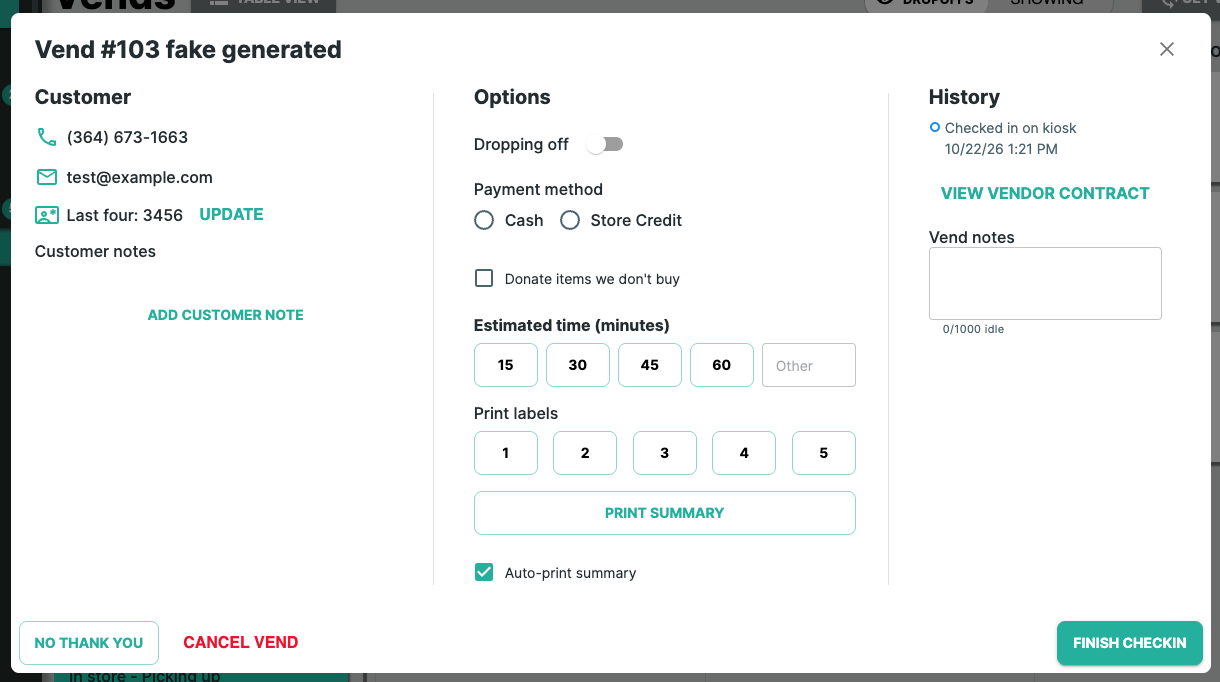
The Vend Card has a new layout. The biggest change here is that customer information is now read-only. Staff can see the customer's details, but can no longer edit them on the card. This keeps customer records accurate and also protects customer privacy. To learn more about why we made these changes, see the Baseline and Customer Changes: FAQS.
What's Changed?
| Before | Now | |
| Customer Name | Editable Field | Shown in the title card and view-only |
| Phone and Email | Editable fields | Read-only |
| Government ID | Masked editable field | Only the last-4 digits are shown. Can update, not see full ID. |
| Payment Method | Only viewable with drop-offs | Always visibile |
| Estimated Time | Used to include 120 | 120 has been dropped |
| Print Contract | Displayed on main card | Now displayed within "View Vendor Contract" |
Using the Vend Card
Customer
This section shows the customer’s phone number, email, and the last four digits of their ID.
- Need to correct a phone number or email? The customer updates it themselves at the kiosk: they enter their phone number, tap Edit, and verify with a text code.
- Government ID: Click Update to add a new ID
- If Government ID is needed for legal reasons, please reach out to Tech Support and our technical team will be able to acquire the information.
- Customer notes: Click Add Customer Note to leave a note that stays on the customer’s record.
Options
- Dropping off: Turn this on if the customer is leaving items and returning later.
- Payment method: Defaults will be selected if the customer chose something at check-in, otherwise, select the option once the customer has provided it.
- Donate items we don’t buy: Check this if the customer wants to donate items you don’t purchase. This option only appears if your store accepts donations (set under Settings > Check-In).
- Estimated time: Select 15, 30, 45, or 60 minutes, or type a custom time in the last box.
- Print labels: Choose how many labels to print. The card shows how many have already been printed.
- Print Summary: Prints the vend summary for the customer.
- Auto-print summary: When checked, the summary prints automatically.
History
- Shows how and when the customer checked in (for example, checked in on kiosk with the date and time).
- View Vendor Contract: Opens the contract the customer agreed to at check-in.
- Vend notes: Add notes about this vend (up to 1,000 characters).
Buttons
- Green Button: The copy changes here, but will always let you know which step is next
- No Thank You: Use this if you do not want to take any of the items that have been brought in. This cancels the vend, but lets you send a message directly to the customer.
- Cancel Vend: Cancels the vend.
Was this article helpful?
That’s Great!
Thank you for your feedback
Sorry! We couldn't be helpful
Thank you for your feedback
Feedback sent
We appreciate your effort and will try to fix the article