Customer Check In is integrated directly with Baseline to check in customers to the loyalty program and to connect them to Invoices.
TABLE OF CONTENTS
Before Beginning
- This is designed to work with iPad 9th generation or newer.
- To check the generation of your iPad navigate to Settings > General > About > Model Name
Quick Links
The Customer Check In page can be opened on any iPad connected to your store network. Use the link and URL for your store concept. You can also find these links in Baseline by going to Settings > Check In
| Store Type | URL |
| Kid to Kid | http://192.168.1.51:8080/customerKiosk |
| Uptown Cheapskate | http://192.168.1.151:8080/customerKiosk |
Step-by-Step Guide
Step 1: Add the kiosk to the iPad's Home screen
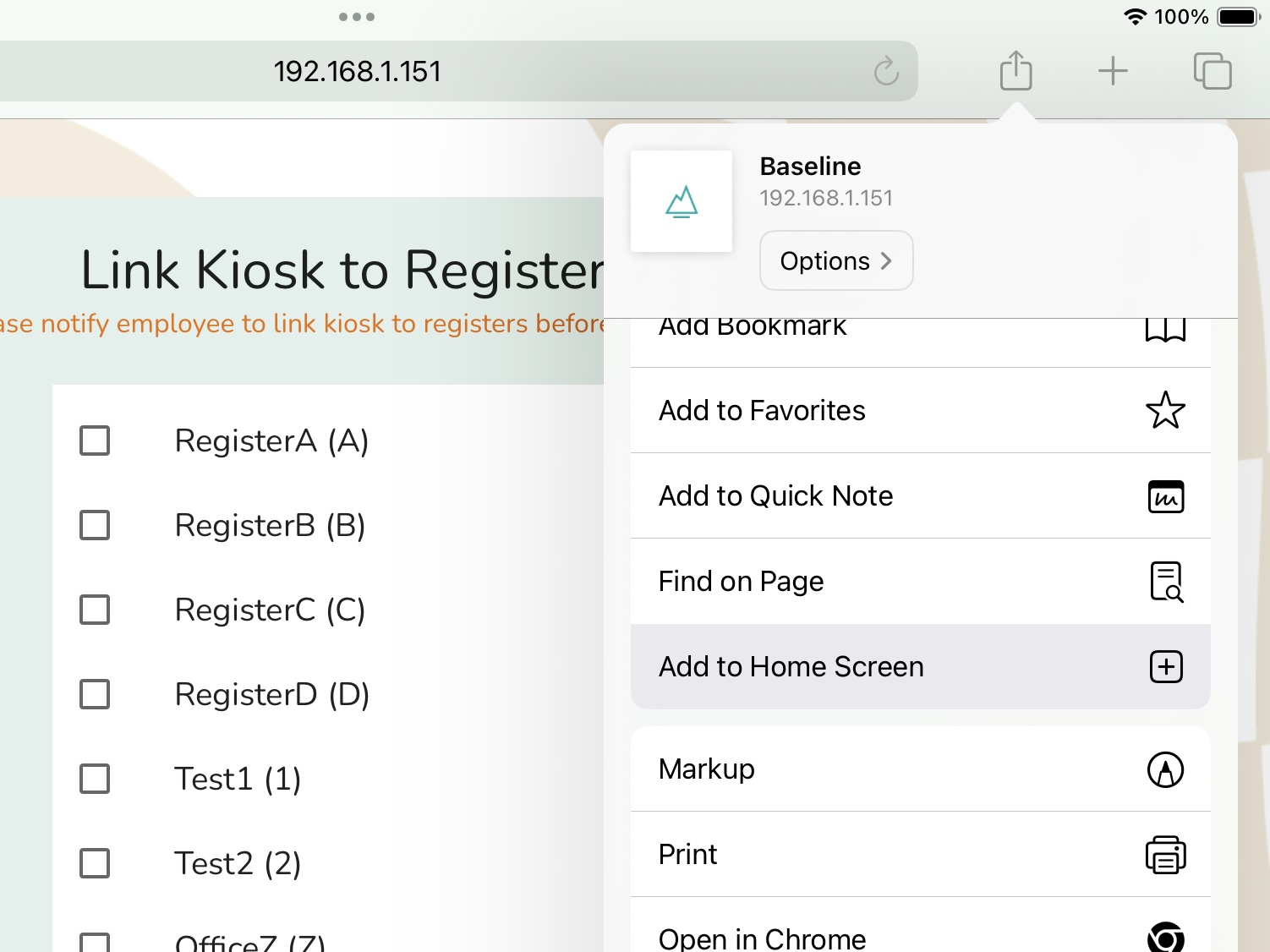
- Open the relevant link in Safari on your customer-facing iPad
- Tap the Share icon
- Select Add to Home Screen
- Name it something the staff will easily recognize
- Confirm the new icon appears on the home screen
- Open
Step 2: Hide the Safari Toolbar
- Navigate to the kiosk URL in Safari
- Tap the aA or page settings icon in the top left of the address bar
- Tap Hide Toolbar
The address bar and toolbar will no longer be visible to customers. To show it again, tap the bottom of the screen and select Show Toolbar.
Step 3: Link the iPad to your register(s)
- Use the newly created button on your home page to open the Check In
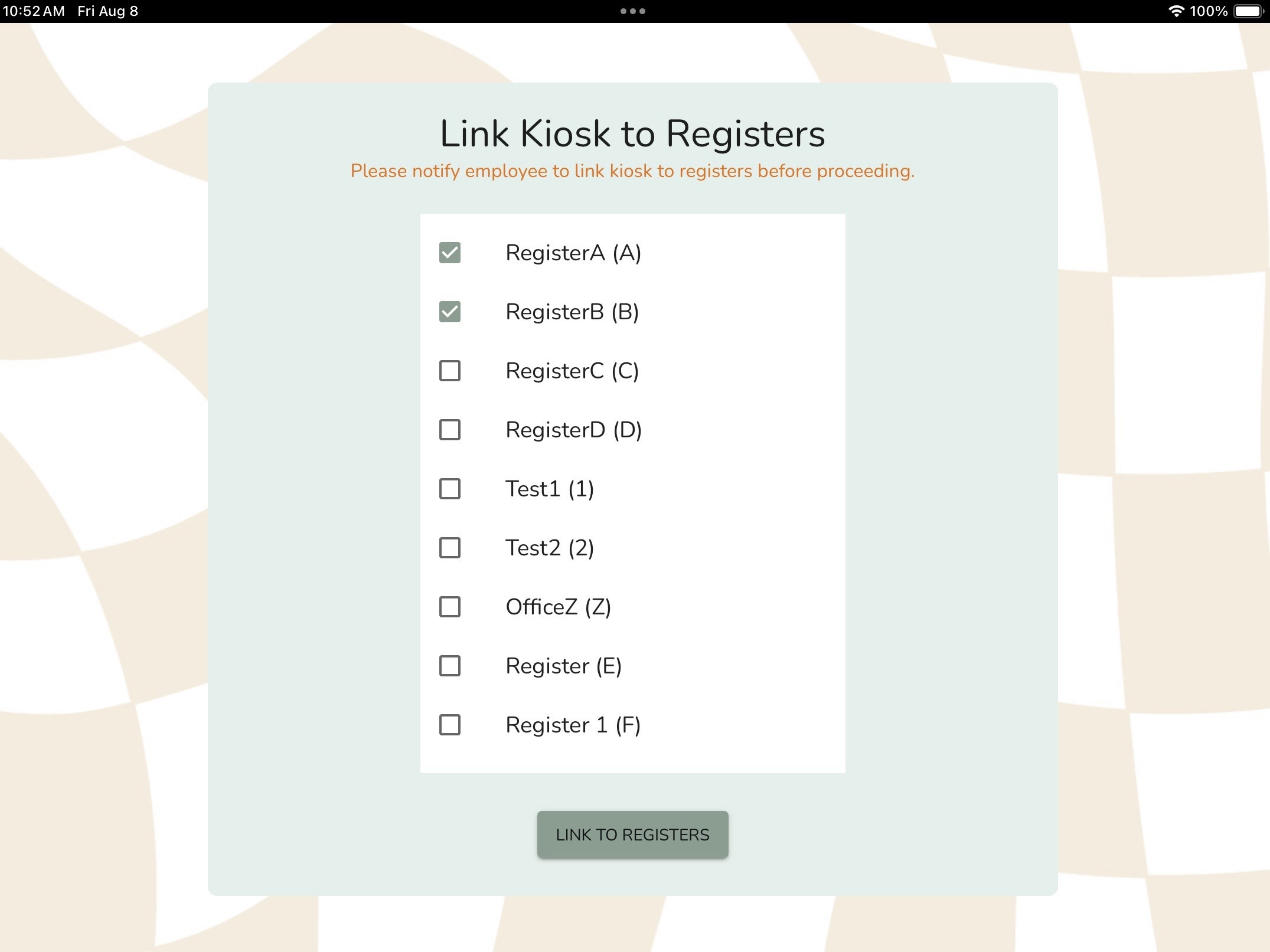
- Link the iPad to its associated register(s)
- You can link multiple registers to a single iPad, but must link at least one
Step 4: Adjust Linked Registers (if needed)
- Tap the top left corner three times to open the register link screen
- Previously linked registers will appear checked
- Make any changes then select Link Registers to save
Step 5: Run a Test Check In
- Type in a test phone number
- Open an invoice on Baseline
- The customer's name should automatically display
Settings
Configure settings in Baseline under Settings > Check In
- Hide "Get Check Ins" Button
- Require Email
- Require Birthday
- Enable Invoice Quick Start
Troubleshooting
Website Cache
To clear the website cache on Safari:
- Open Settings on the iPad
- Scroll down and tap Safari (or use the search option)
- Tap “Clear History and Website Data”
- Confirm
Note: When clearing the cache, you will typically have to re-enter and save any previous websites or settings within Safari.
JavaScript Error
If you receive a JavaScript error after navigating to the URLs:
- Open iPad Settings > Scroll to Apps (bottom of the menu bar) > Locate and tap Safari > Scroll to and tap Advanced (bottom of the page) > Ensure "JavaScript" is toggled on.
Was this article helpful?
That’s Great!
Thank you for your feedback
Sorry! We couldn't be helpful
Thank you for your feedback
Feedback sent
We appreciate your effort and will try to fix the article