Customers check themselves sin on the Check-In Kiosk. This article goes through what customers see at each step and what happens in Baseline.
Each Kiosk is set up for one of two flows:
- Shopper: For customers who are purchasing items from your store. It connects to a registers and invoices.
- Vendor: For customers selling items to your store. This creates a vend in Baseline.
To set up a kiosk, see How to Set Up Check In Kiosk.
Internet is required. The kiosks cannot operate offline. For information on accessing backups check out this article: Internet Backups/Failovers
Step 1: Enter a phone number
Every check-in starts with the customer’s phone number. This is how we identify customers, so there’s no need to search by name.
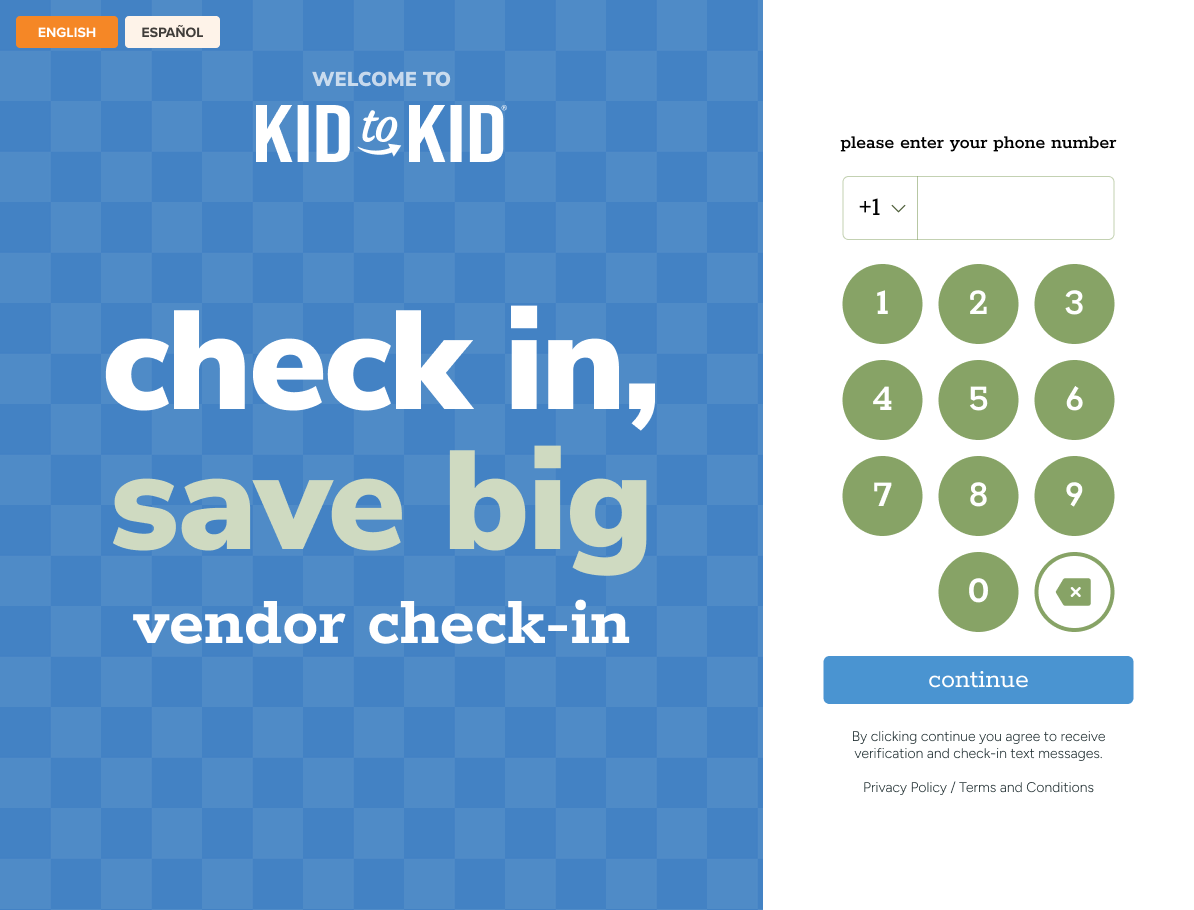
What happens next depends on the customer:
- Returning customer at your store: Their information is already filled in.
- Has shopped at another location, but is new to yours: Their basic contact information is pre-filled to save time.
- Brand-new customer: They enter their information, and a new customer record is created.
Step 2: Confirm or enter their information
Customers review their details and fill in anything that’s missing.
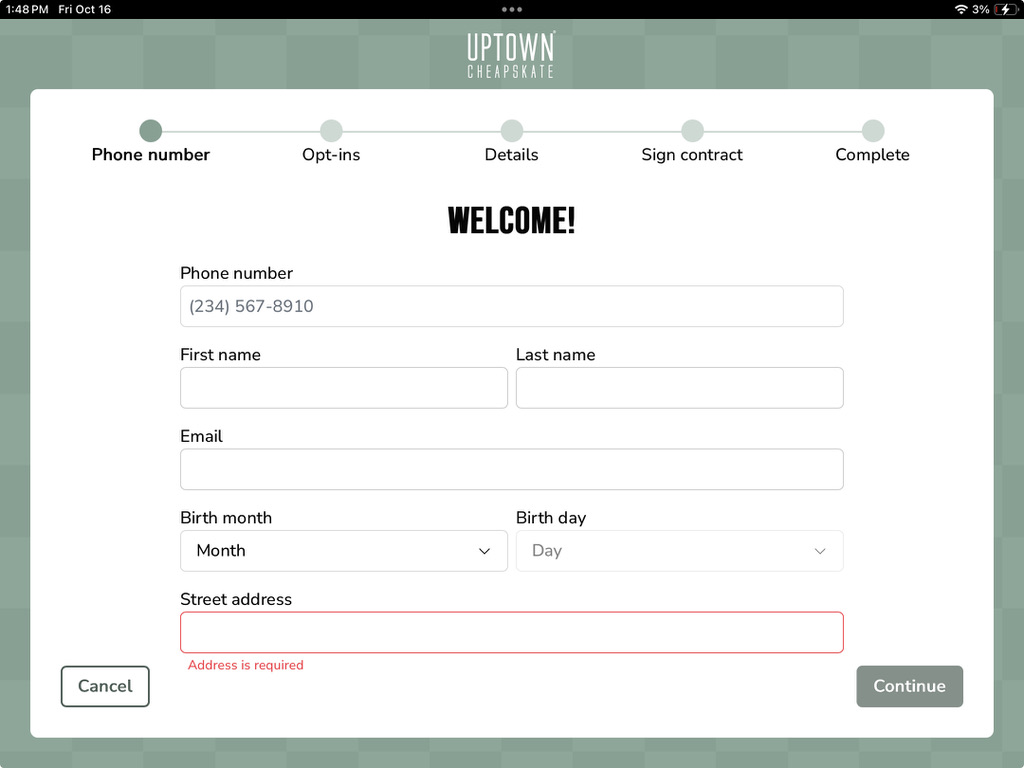
- Required fields are set by BaseCamp, except address, which your store can require under Settings > Check-In.
- For Vendors required fields are:
- First Name
- Last Name
- Address (when enabled)
- For Shoppers
- First Name
- For Vendors required fields are:
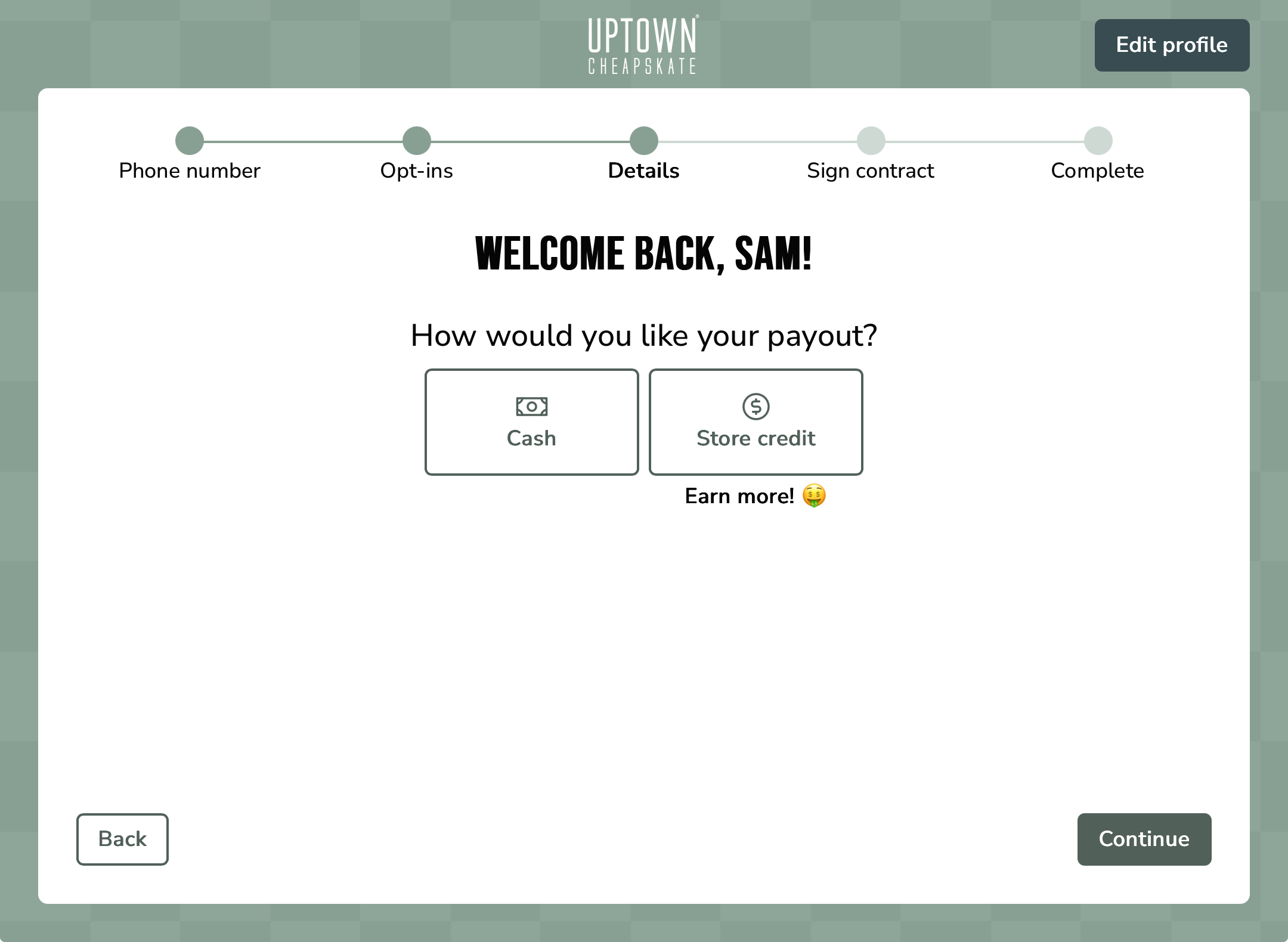
Step 3 (Vendor Check-In only): Choose vend options
- Whether they want to donate items you don’t buy (only shown if your store accepts donations)
- Payment preference: cash, store credit, digital, or decide later
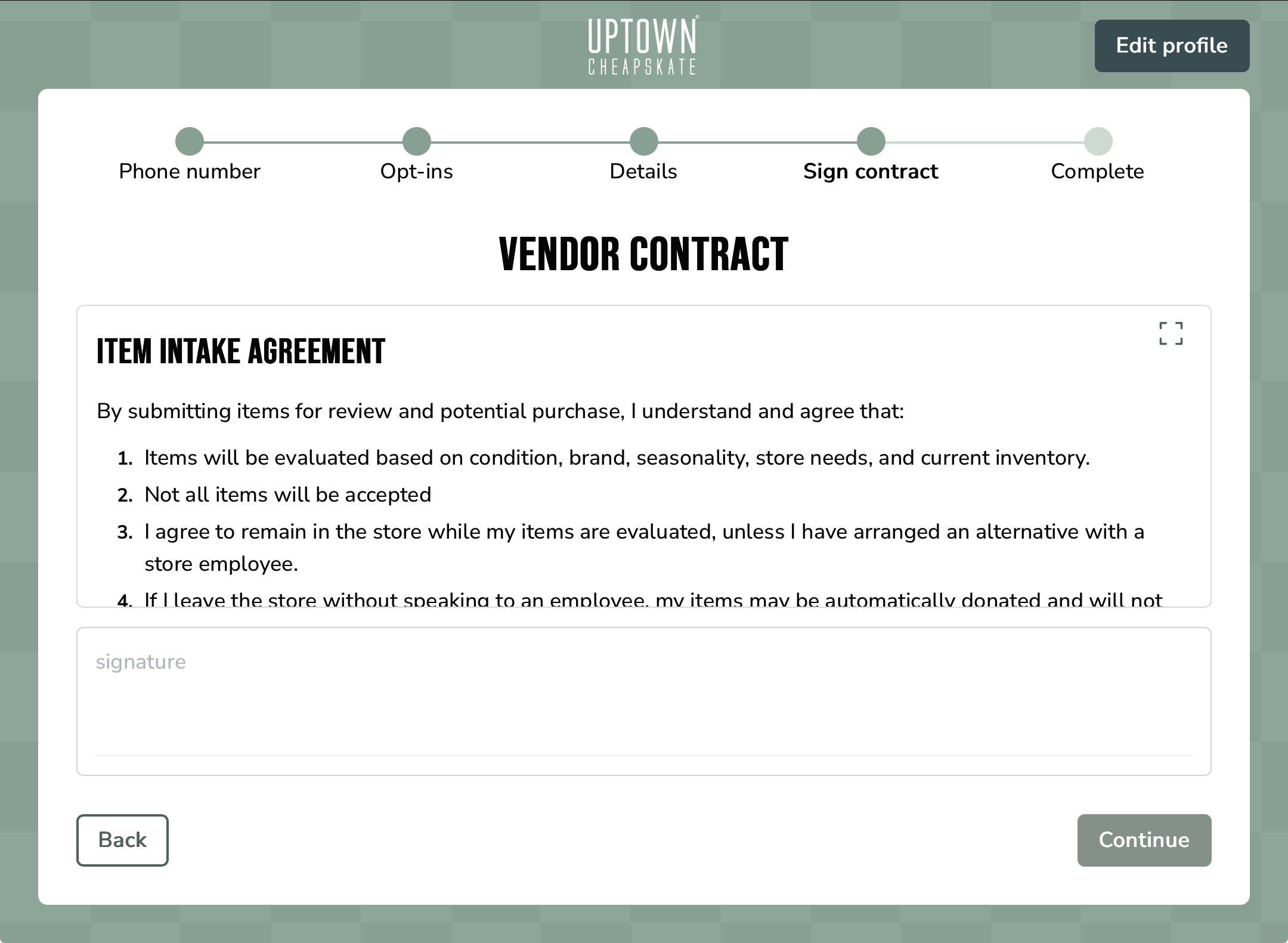
Step 4 (Vendor Check-In only): Review and accept the vendor contract
The customer reviews and agrees to your store’s vendor contract. The contract is standard across locations, except for your return window and donation partners, which you can set under Settings > Check-In.
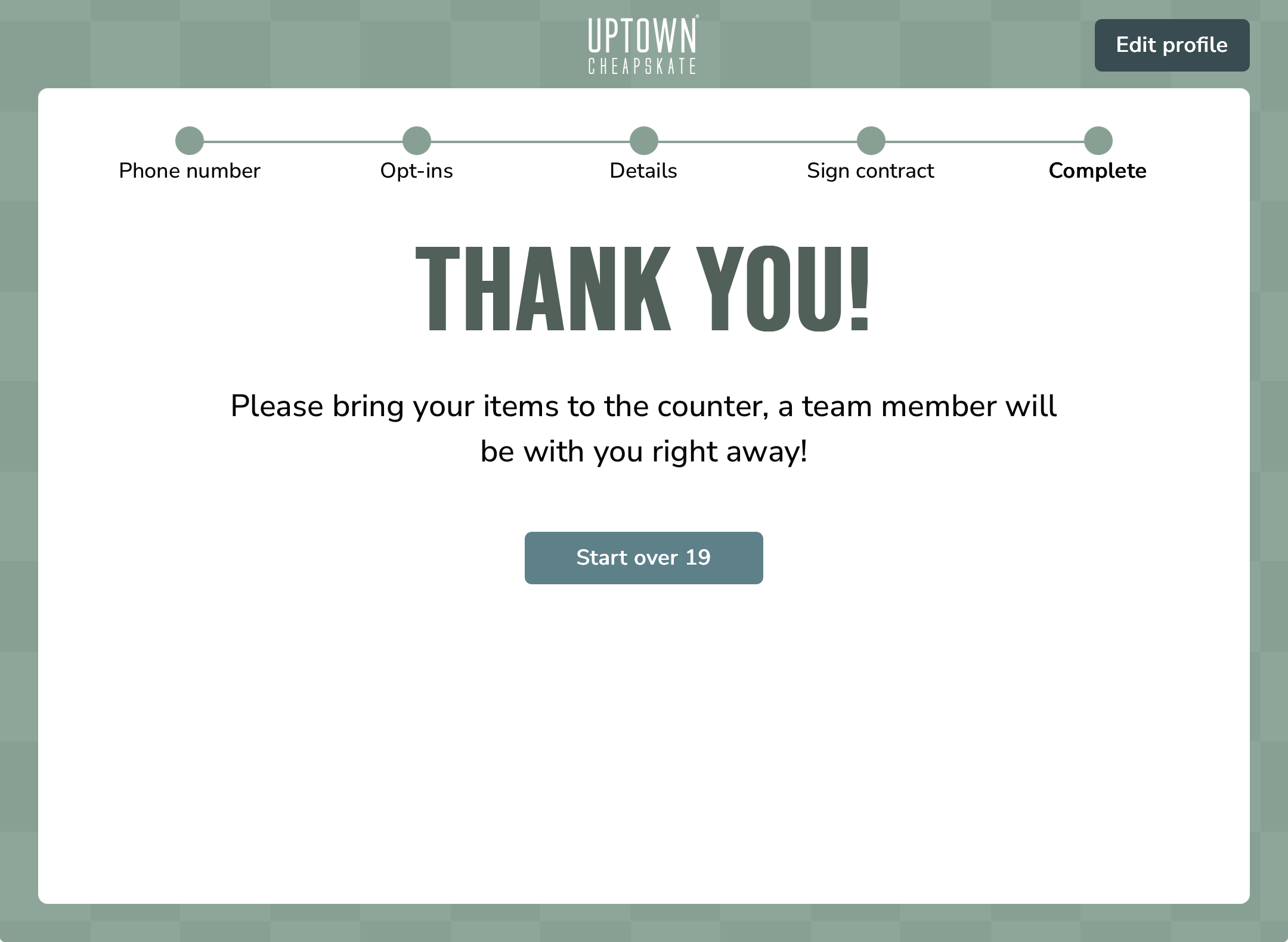
Step 5: Done!
The customer sees a confirmation screen.
What your team sees in Baseline
Shopper Check-In: The customer’s name appears on the invoice at the connected register. If you’ve already started scanning with Invoice Quick Start, add the customer to the invoice once they finish checking in. Invoice Quick Start
Vendor Check-In: A new vend appears in Baseline. Open it to see the customer’s details, their selections, and a Checked in on kiosk entry under History. See Baseline Vends: Vend Card for details.
Updating Contact Information
To update contact information, a customer will need to go through authentication.
- Click Edit Profile in the top right corner of the kiosk
- Customer will be prompted to send a code
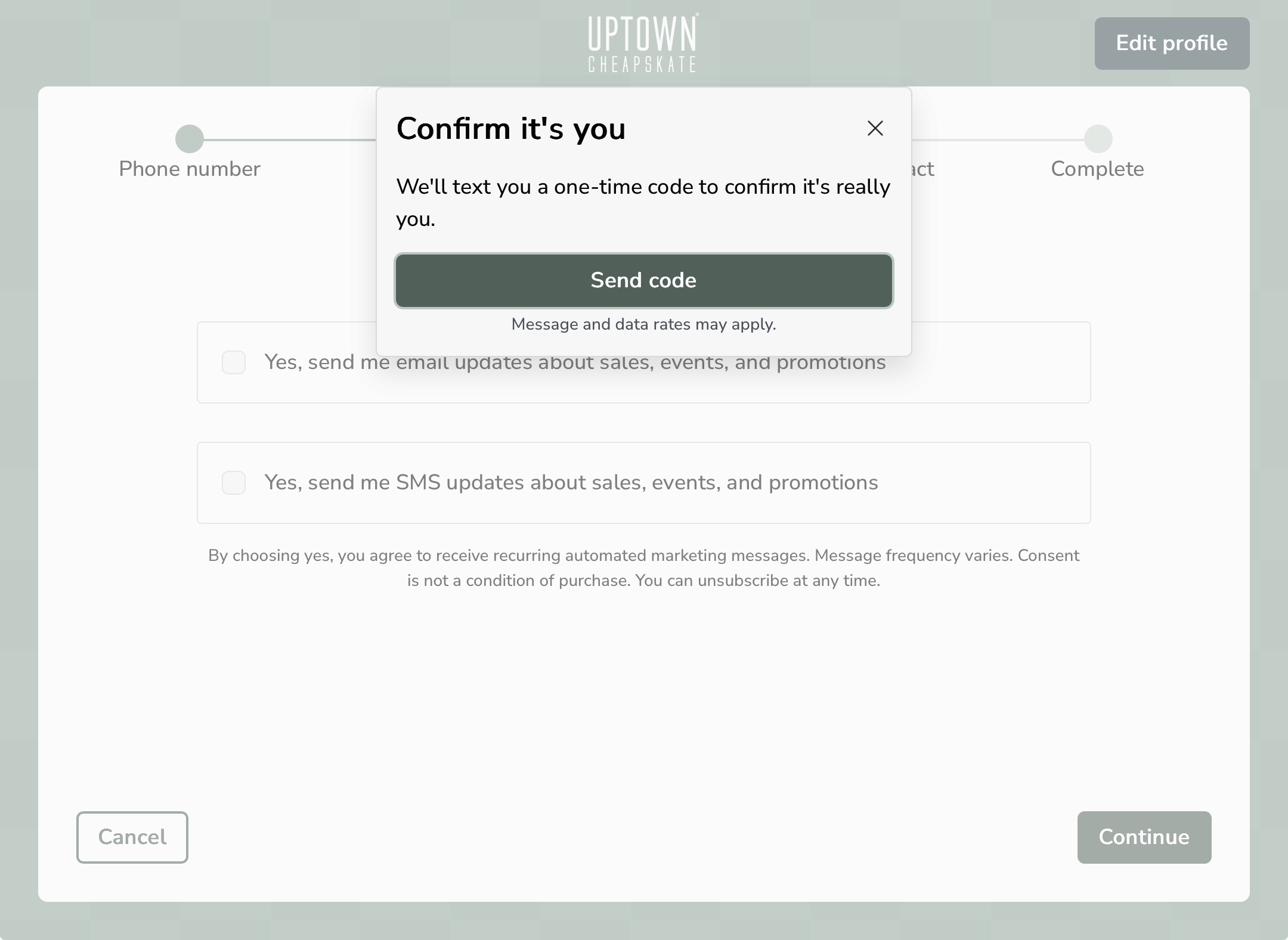
- Enter code received to phone
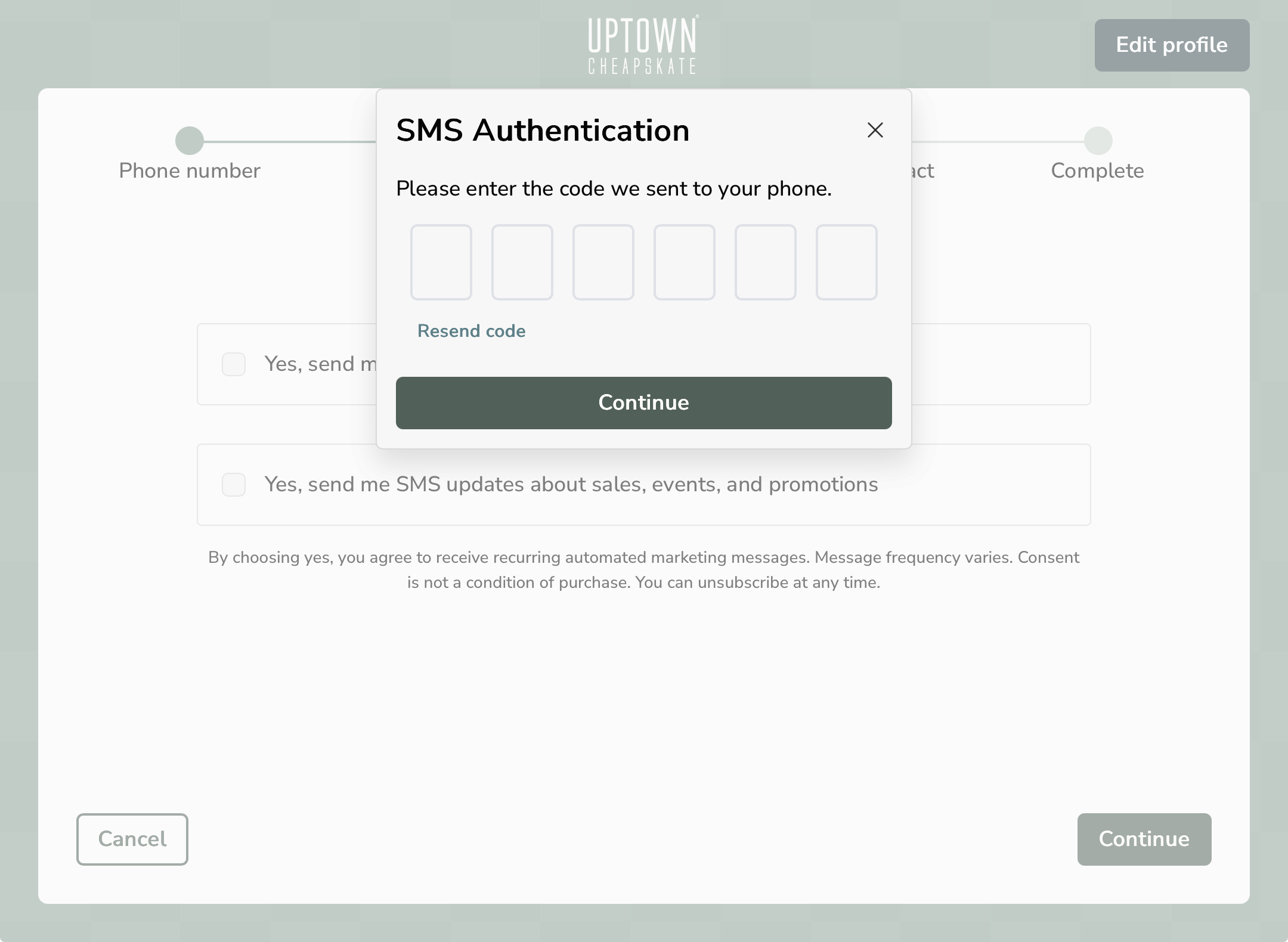
- Customer can now edit their information
Was this article helpful?
That’s Great!
Thank you for your feedback
Sorry! We couldn't be helpful
Thank you for your feedback
Feedback sent
We appreciate your effort and will try to fix the article