This guide is to help troubleshoot your ZD410 or ZD411 printers before reaching out to tech support.
TABLE OF CONTENTS
Issue Description
Zebra label printers can have multiple issues arise, such as not printing tags, skipping tags, continously spitting out tags, etc.
Troubleshooting Steps
Fix Printer
- Located on the desktop, click whichever icon is named Fix Printer:
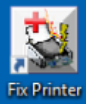

- Test printing a tag from Baseline again.
- If the problem continues, please contact tech support at 801-889-1388
Tags Skipping or Out of Alignment
- Open the lid of the printer and lift the tags up to find a yellow slider with a glass dot in center
- Slide the sensor all the way to the right and then back to the middle, you will feel it click as it moves
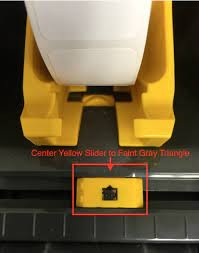
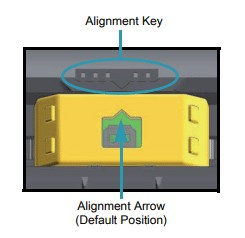
- Put the tags back into place and then close the lid.
- Press and hold the Pause and Cancel buttons at the same time for 3 seconds
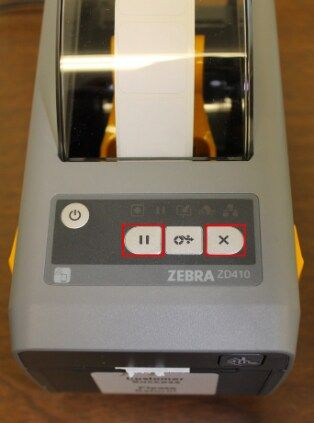
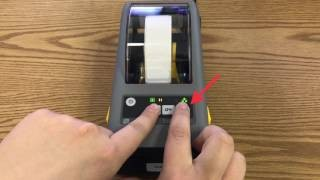
- After doing this, up to 3 tags will have spit out
- Press the Pause button to have the printer resume itself
- Try to print a tag again, and if unsuccessful continue to the next steps
- If the problem continues, please contact tech support at 801-889-1388
Bad Tags
- Sometimes the store will be sent a bad batch of paper tags. The paper tags should look like the picture below:
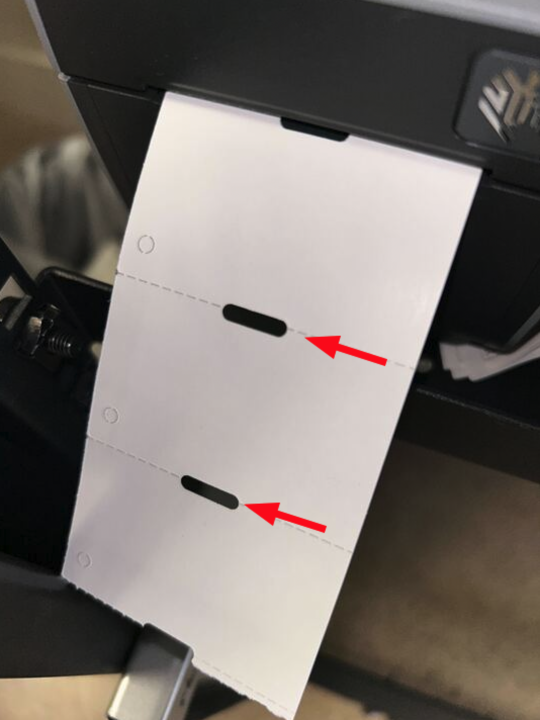
- If the middle oval is not punched out or the tag does not look like the picture above, replace the roll of tags and see if it fixes the issue.
- If the problem continues, please contact tech support at 801-889-1388
Additional Resources
- Printhead Cleaning Video: https://www.youtube.com/watch?v=7BE0IlWINpk
- Kenco Vendor Info: https://wiki.bcfranchise.com/en/marketing/vendors/Kenco
Was this article helpful?
That’s Great!
Thank you for your feedback
Sorry! We couldn't be helpful
Thank you for your feedback
Feedback sent
We appreciate your effort and will try to fix the article