From time to time, it's a good idea to open up and clean your Zebra Printer(s). Keeping dust and debris out of your printer will help them print clearly and consistently, and may help extend the life of your printer.
We recommend using only compressed air and/or distilled water and a clean microfiber cloth when cleaning your Zebra printer. Do not use any household cleaning products or tap water as this can potentially damage the printer.
TABLE OF CONTENTS
Zebra Cleaning 101
A build up of dust and debris in your Zebra printer can cause performance issue including, but not limited to:
- Faded or illegible printed tags
- Misfeeding of tags
- Partial prints
Basic Cleaning
- Power down and unplug all cables attached to the back of the printer
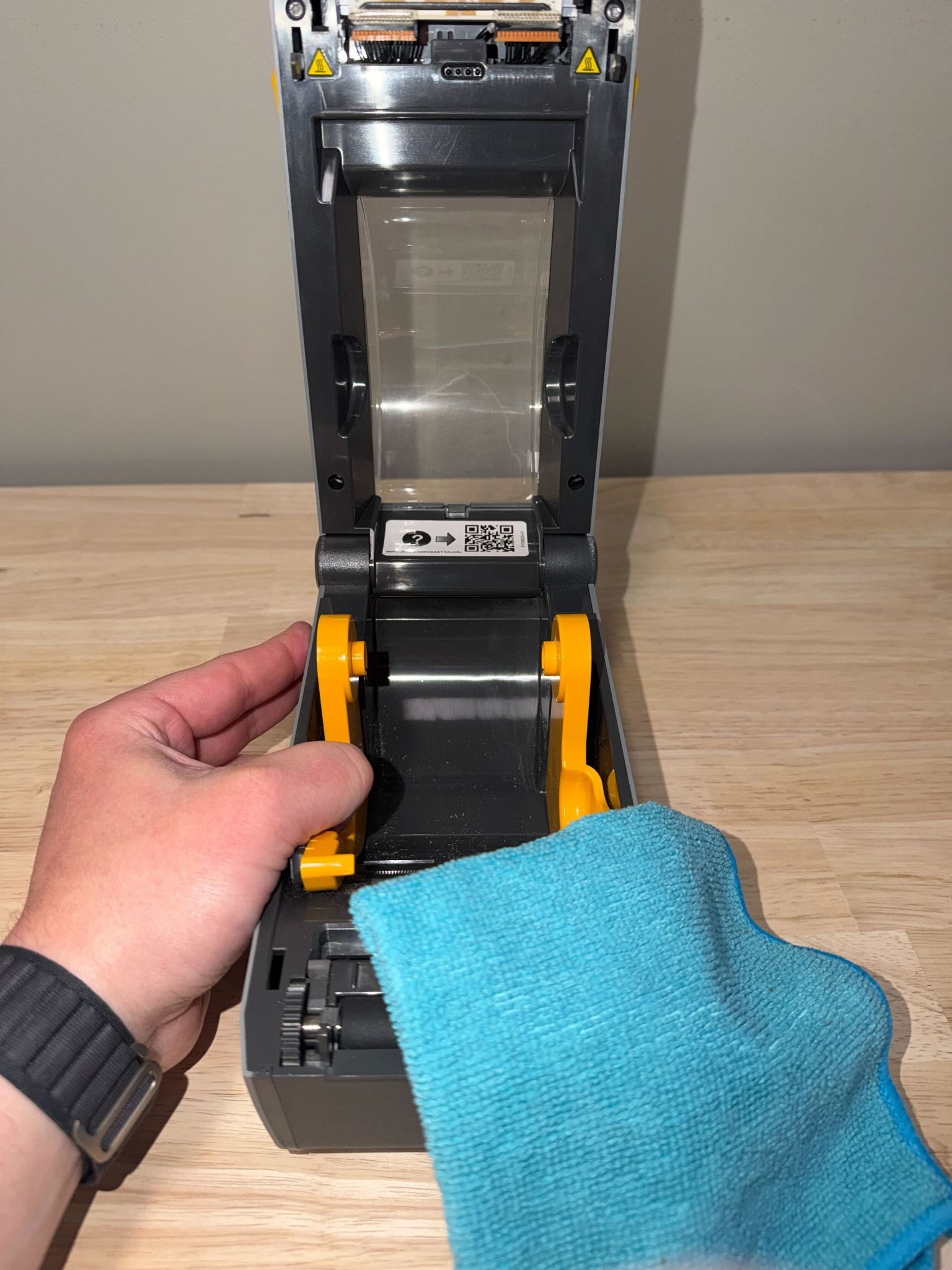
- Open up the lid of the printer using the two yellow sliders on each side of the printer and remove the roll of tags
- Using a microfiber cloth, wipe any visible dust and debris out of the printer. Gently move the arms that hold the tags to clean around them (see photo)
- If available, use a can of compressed air to blow the dust where the microfiber cloth can’t reach
- Replace the roll of tags, close the lid, plug the cables back in, and power on the printer
Cleaning the Print Head
While the Zebra printers use heat to print and not ink, a dirty print head can still cause faded or distorted tags that are difficult to read and scan. Keeping the print head clean and free of debris can help remedy misprinted or faded tags.
- Power down and unplug all cables attached to the back of the printer
- Open up the lid of the printer using the two yellow sliders on each side of the printer
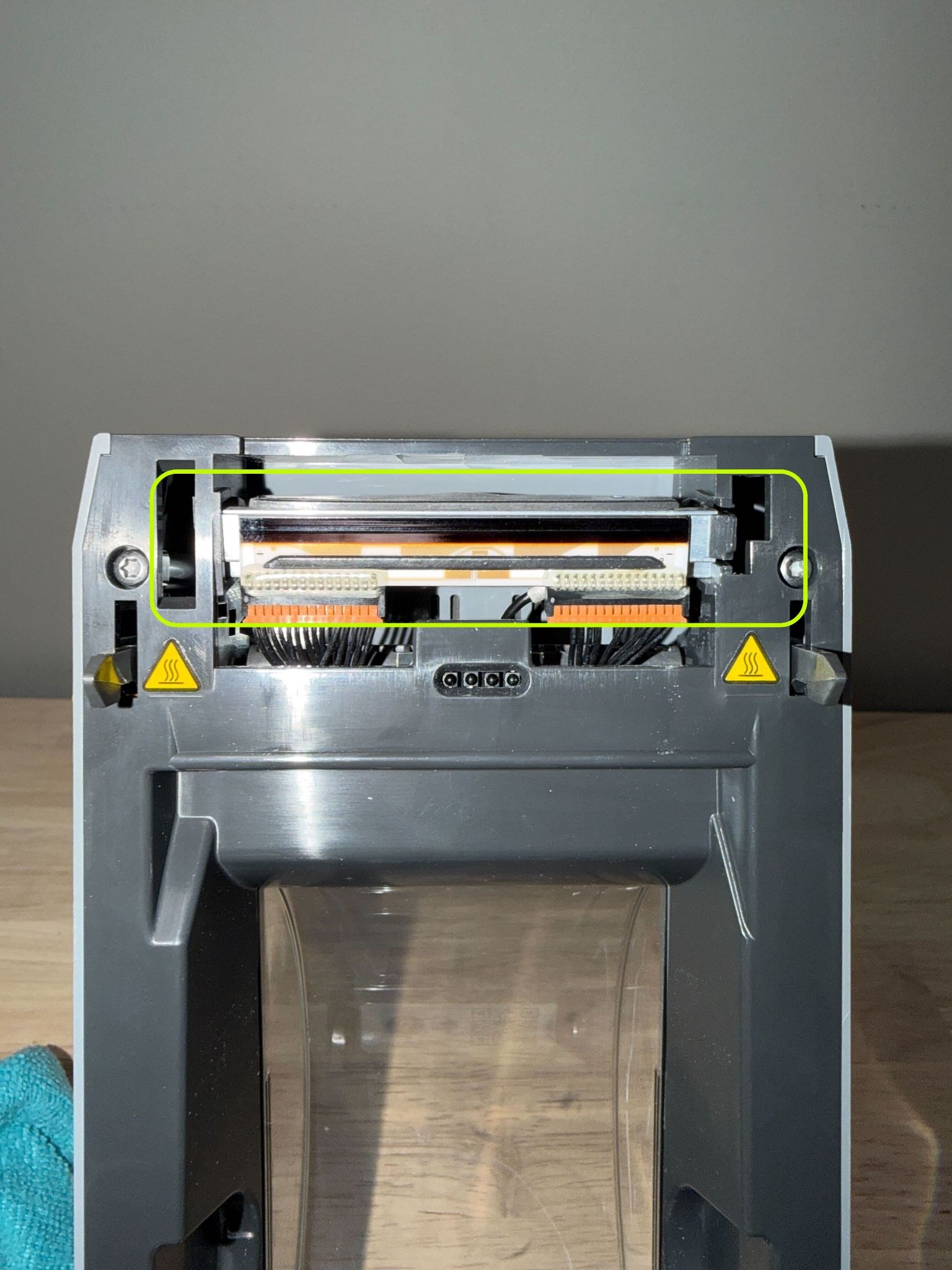
- Locate the print-head at the top of the printer (see photo)
- Gently wipe the print-head using clean, dry microfiber cloth
- If available, use a can of compressed air to blow the dust where the microfiber cloth can’t reach
- Close the lid, plug the cables back in, and power on the printer
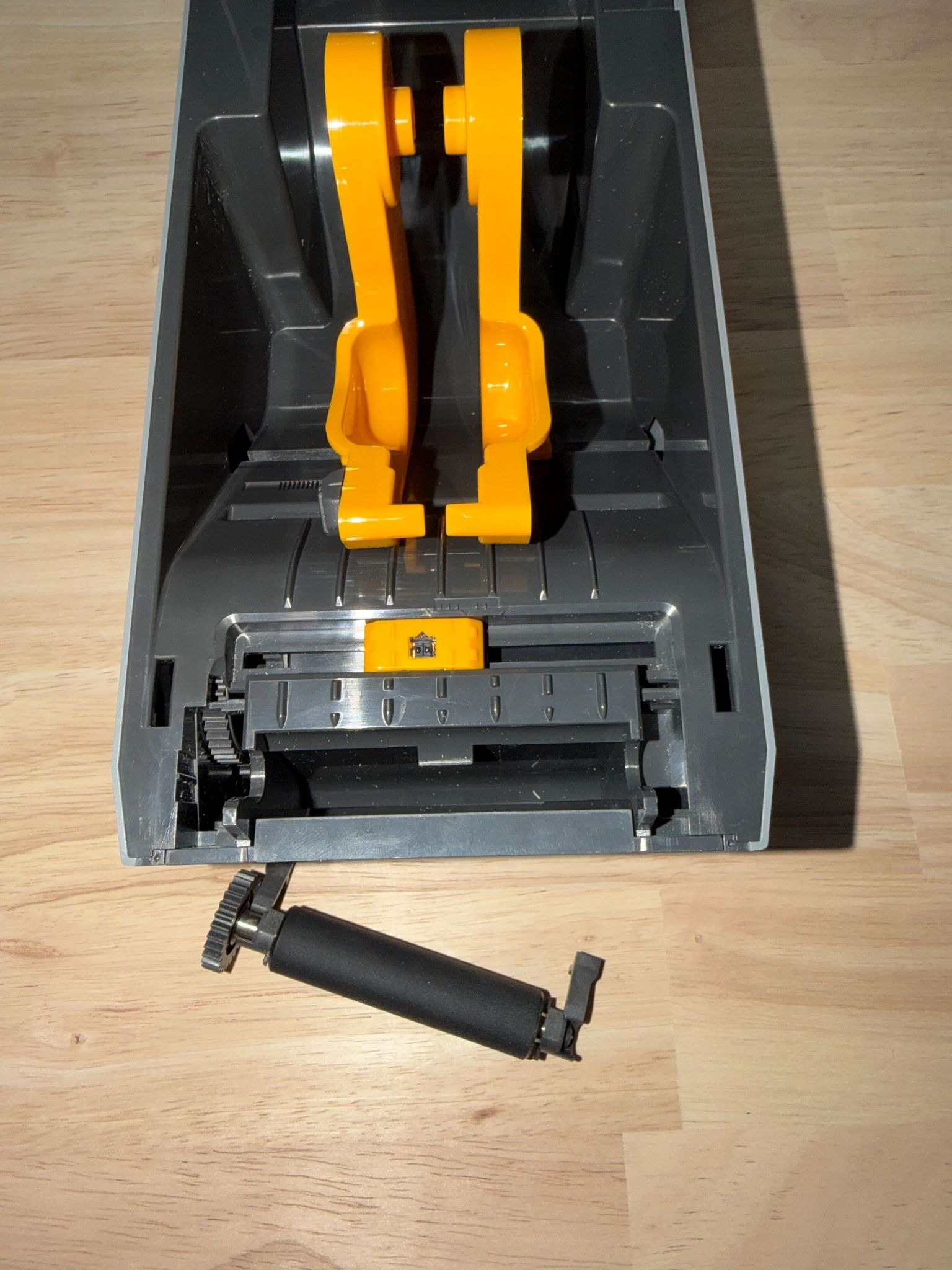
Cleaning the Tag Roller
Zebra printers come equipped with a rubber platen roller to pull tags forward during print jobs. It is possible for the roller to become dirty, causing a single tag to print across multiple tags. Keeping the platen roller clean will help your printer smoothly pull the next tag.
- Power down and unplug all cables attached to the back of the printer
- Open up the lid of the printer using the two yellow sliders on each side of the printer
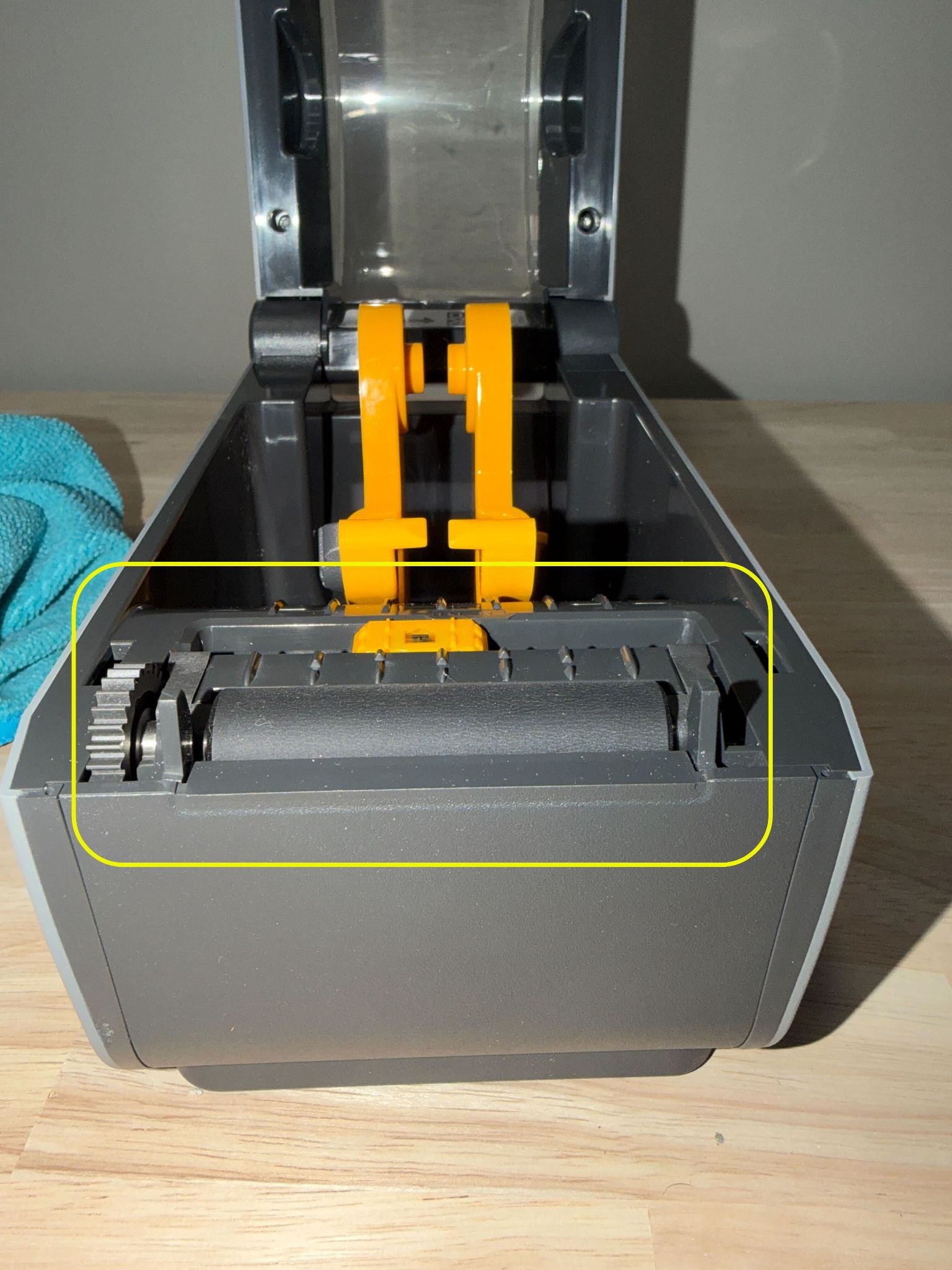
- Locate the platen roller towards the front of the printer and remove the roll of tags
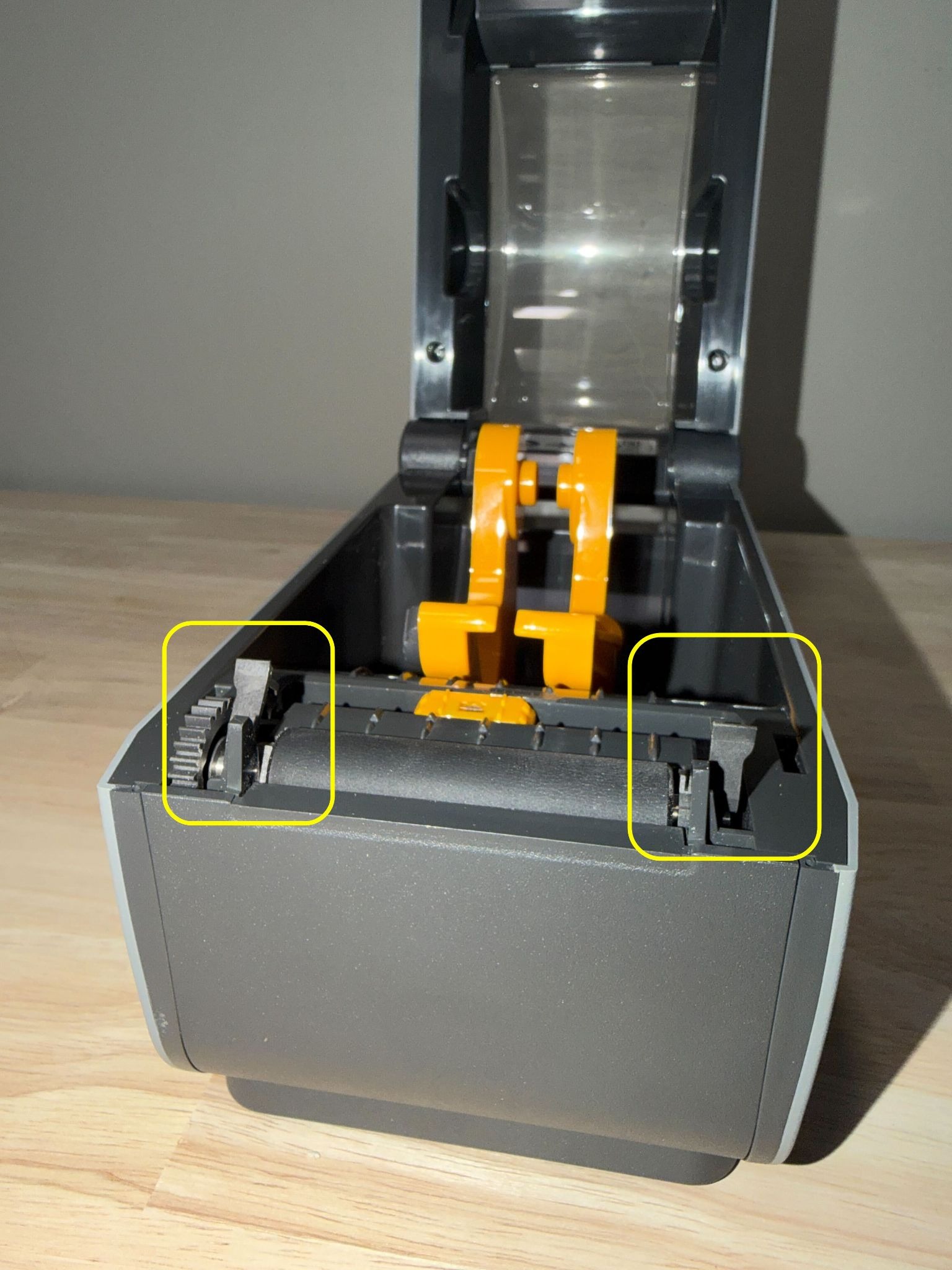
- Gently pull the tabs on each side of the roller upwards, this will allow you to pull the roller up and out of the printer
- Gently pull the roller out of the printer and set aside
- Check the cavity below the roller, gently clear any debris and blow out any dust if you have a can of compressed air available
- Wipe down the roller then place it back in the printer and push down the tabs on either side of the roller to secure it back in place
- Close the lid, plug the cables back in, and power on the printer
Aligning the Media Sensor
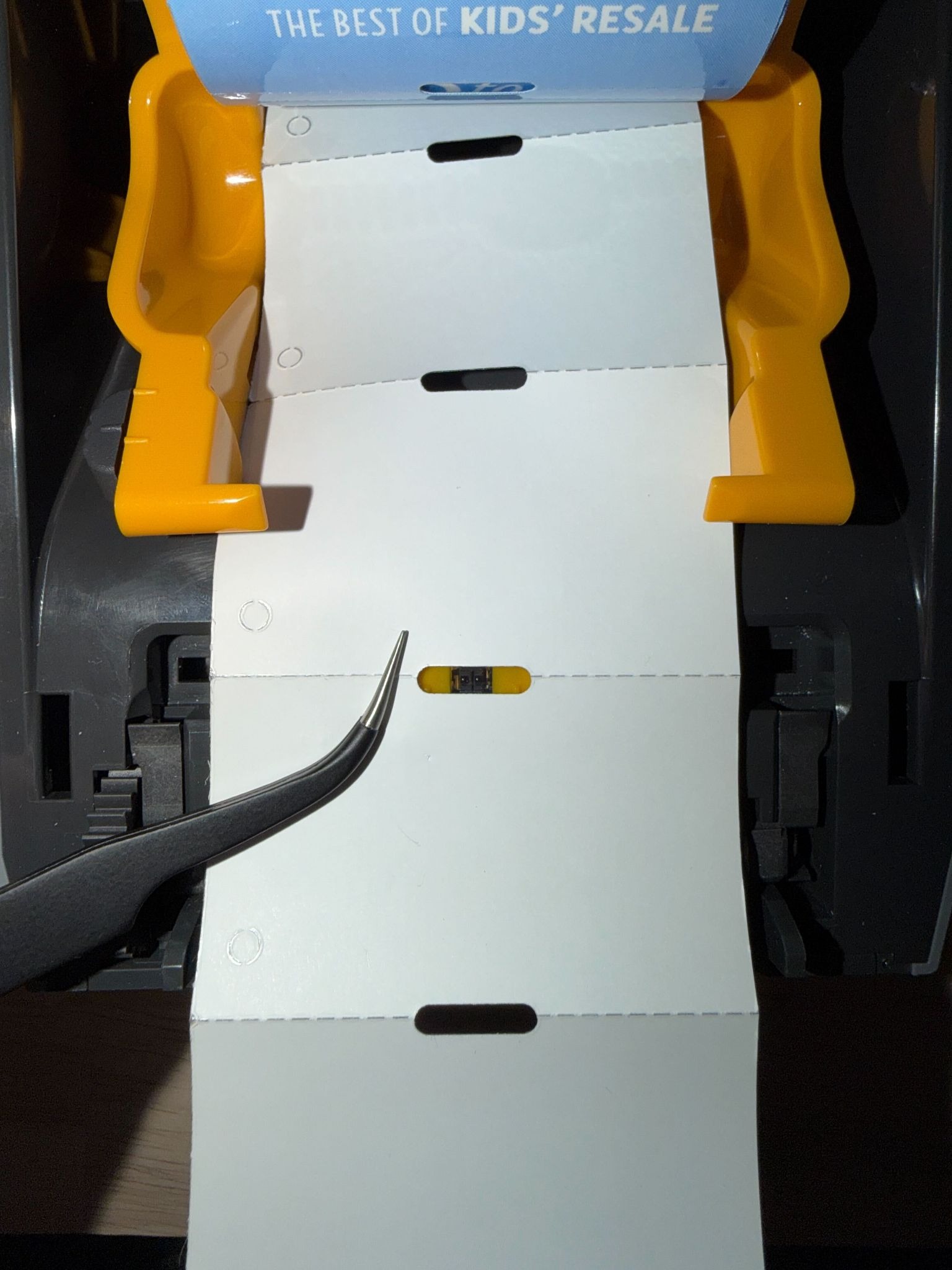
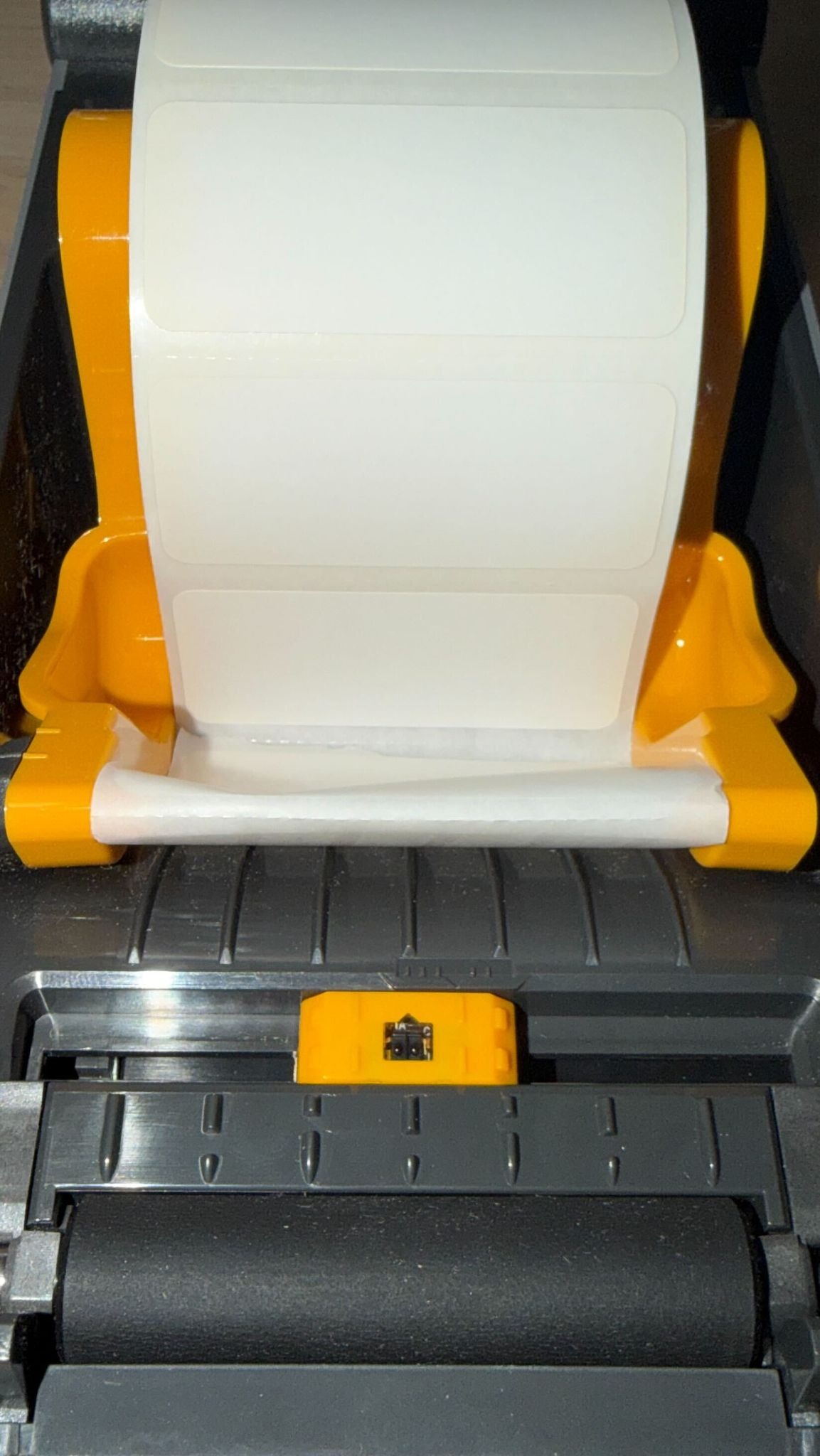
While not necessarily part of the cleaning process, it is important to keep your Media Sensor aligned so your tags feed correctly from your printer.
Paper Tag Printer
The media sensor should be aligned with the middle of the oval between each of the tags, see the example photo below:
Sticky Tag Printer
The media sensor should be on the center line of the slider, see example photo below:
Was this article helpful?
That’s Great!
Thank you for your feedback
Sorry! We couldn't be helpful
Thank you for your feedback
Feedback sent
We appreciate your effort and will try to fix the article