The Zebra printers frequently leave calibration, which can be caused simply by changing the paper. We can ensure the printers stay working continuously by knowing how to properly recalibrate them when they're printing blanks, skipping tags, printing price only, etc. Any abnormal printing can usually be resolved with proper calibration.
TABLE OF CONTENTS
Issue Description
When a Zebra Printer is having any printing abnormality like skipping tags, printing blanks, printing the price between tags, not printing bar codes, etc. Where it is still printing something, but the printed result is wrong, we can usually fix it by getting the printer calibration corrected.
In this guide are some handy pictures that help to describe how to get the printer back into alignment and properly calibrated to print correct tags.
Basic Troubleshooting Steps
- Open up the printer
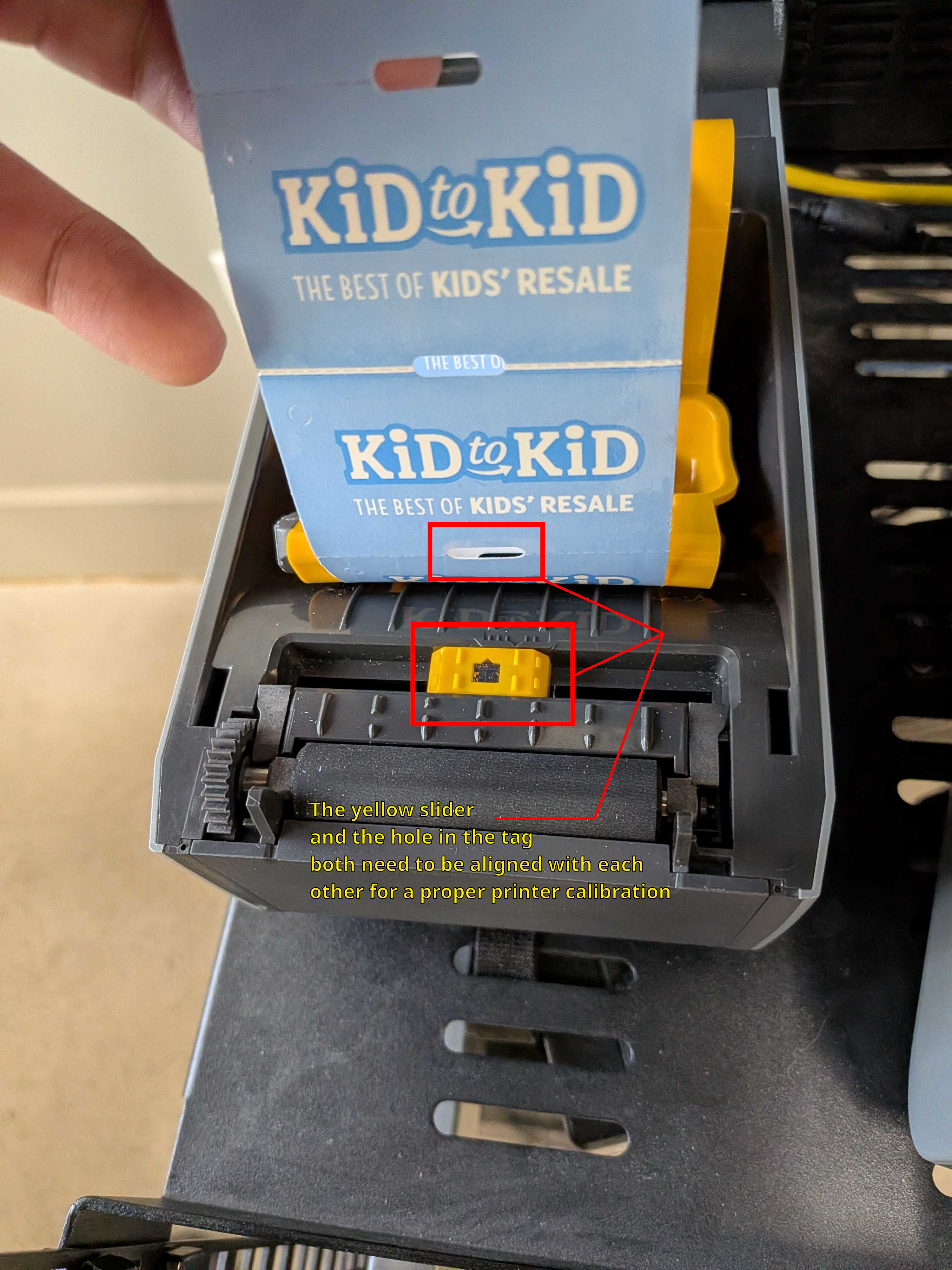
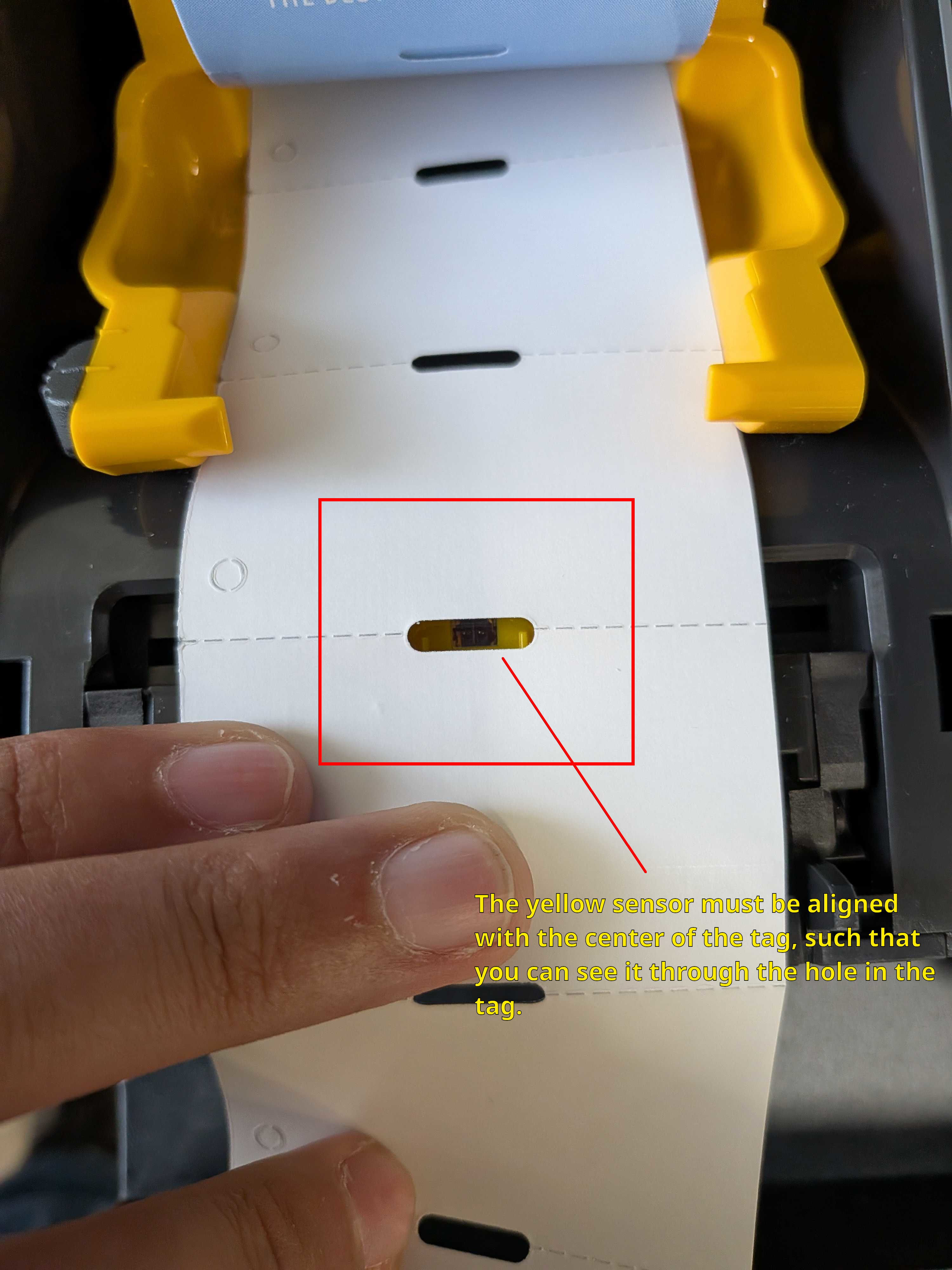
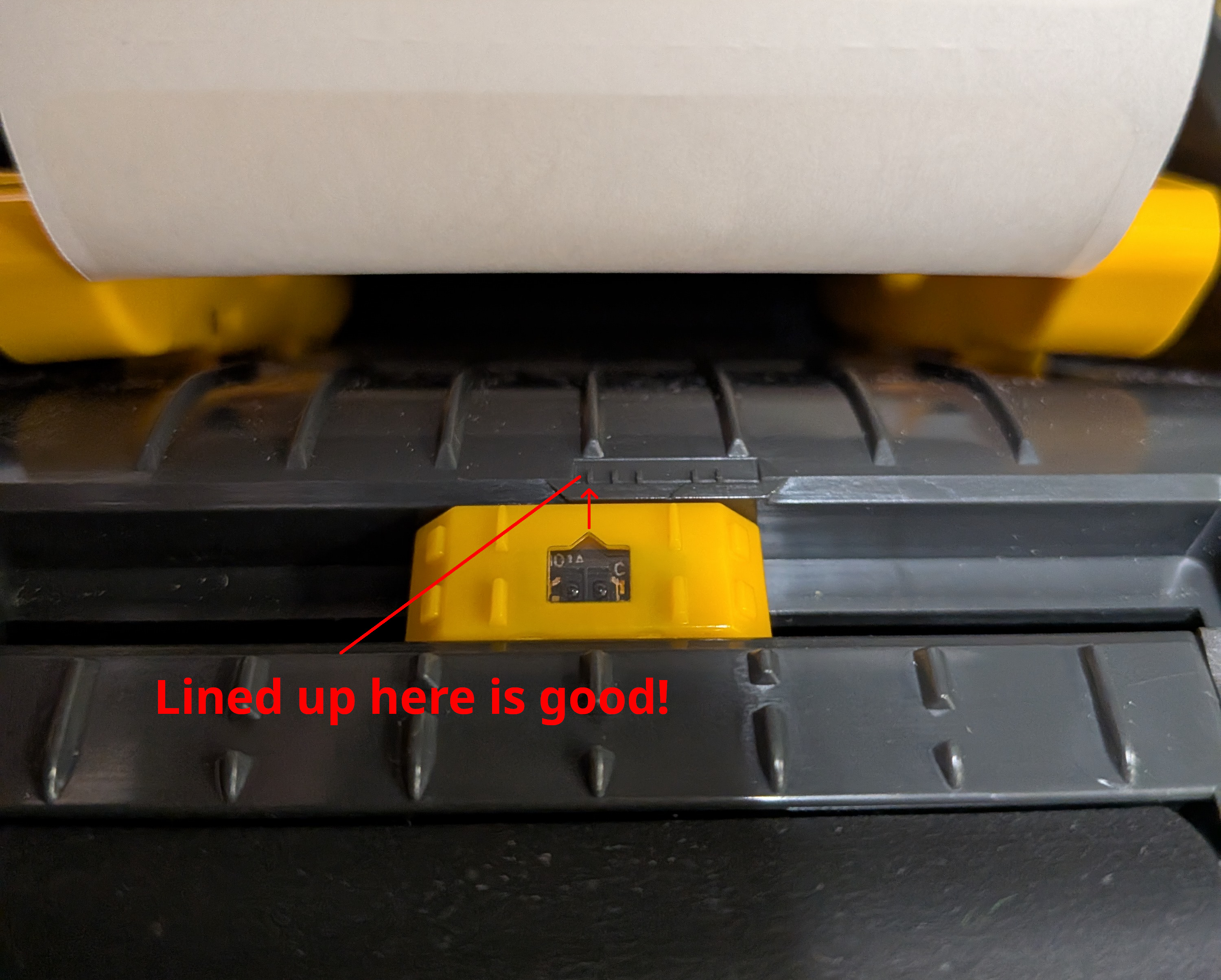
- Make sure the yellow slider near the rolling pin is aligned with the middle of the tag. This works for both hard/paper tags and sticker tags.
- Make sure the yellow slider is cleaned up. It is a laser sensor and it might have dust making the laser not read accurately.
- Close up the printer
- Unpause the printer
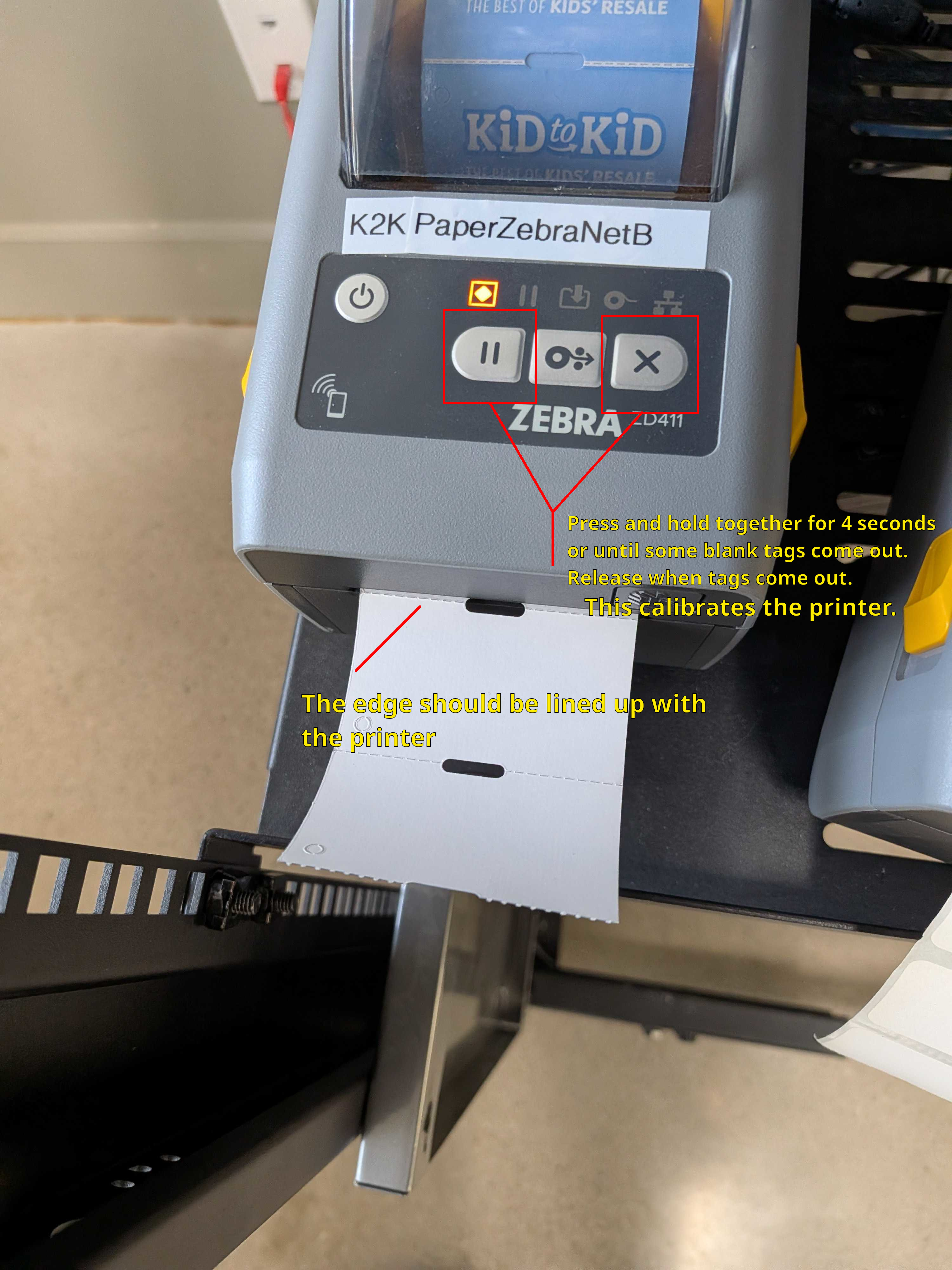
- Press and hold the Pause (⏸️) and Cancel (❎) buttons on the printer for about 4 seconds and release when a few blank tags come out. When the printer is properly calibrated, only a few tags (Around 3 give or take 1 or 2) should print out. If it continues to put out tags, try calibrating again. If after a couple of retries it's still having issues, call BaseCamp Tech at 801-889-1388 for assistance.
Visual Resources
Was this article helpful?
That’s Great!
Thank you for your feedback
Sorry! We couldn't be helpful
Thank you for your feedback
Feedback sent
We appreciate your effort and will try to fix the article