Backstock is a feature within Baseline that allows stores to create virtual representations of physical backstock bins.
Tracking bins in Baseline helps teams:
- Track where backstock bins are stored
- Understand what inventory is available in backstock
- Move product more between locations and to the sales floor more efficiently
Backstock works directly with Rack Health to help replenish the sales floor. When Rack Health identifies a section that needs replenishment, Backstock helps teams quickly determine which bins should be used to replenish the floor.
TABLE OF CONTENTS
- Step-by-Step Guide
- Other Things to Know
Step-by-Step Guide
Step 1: View and Understand Bins
Backstock bins represent physical containers in your store that hold inventory not currently on the sales floor.
Each bin includes the following information:
Bin Number
A unique identifier using the format ##-###
- The first two digits represent the year the bin was created
- The digits after the hyphen increment sequentially for each bin created that year
Section Name
Matches Rack Health sections to ensure backstock aligns with how inventory is organized on the sales floor.
Sales Cycle
Identifies the season the inventory belongs to
- All
- Spring/Summer
- Fall/Winter
Status
- Packing
- Packed
- Unpacked
Created Date
The date the bin was created.
Packed Date
The date the bin was lidded and moved into storage.
Location
Where the bin is physically stored.
Employee
The employee who created the bin.
Notes
Optional notes about the contents of the bin.
Action Button
Available actions based on the bin's current status.
Bin Lifecycle
Each backstock bin moves through three statuses as inventory is managed.
Packing -> Packed -> Unpacked
Packing
The bin has been created and is currently being filled with items.
Tracking and labeling the bin at this stage helps employees know which items belong in the bin while inventory is being sorted and organized.
Packed
The bin is full, lidded, and stored in a backstock location.
At this stage, the bin is ready to be pulled when Rack Health recommends replenishing the corresponding section.
Unpacked
The bin has been pulled and used to replenish the sales floor.
Once the section is replenished in Baseline, the bin's status automatically updates to Unpacked.
Step 2: Creating Bins
There are two ways to create a bin in Baseline.
Option 1: Create a New Bin
- Click Create Bin
- Enter the required information
- Sales Cycle
- Section - Select from the section list
- Location - Where the bin will be stored
- Notes (Optional)
- Click Create Bin
New bins will automatically be assigned the status of Packing.
Option 2: Add an Existing Bin Baseline
If you already have physical bins that were created before using the Baseline Backstock feature, you can add them manually.
- Click Create Bin
- Enter the required information
- Sales Cycle
- Section
- Location
- Notes (Optional)
- Select Add Existing Bin Details
- Enter
- Bin Number
- Employee
- Created Date
- Click Create Bin
Bin Number Restrictions
- Bins cannot start with a 0
Step 3: Printing Labels
After a bin is created, a label can be printed and attached to the physical Bin.
Getting Started
To print bin labels, you will need:
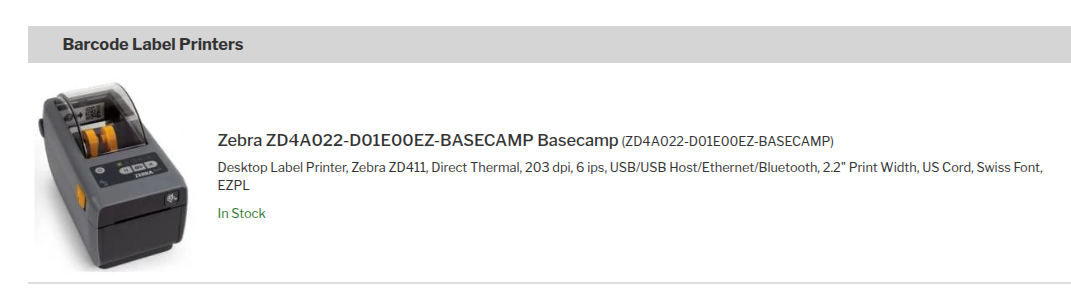
- A Zebra ZD411 Ethernet-connected printer (this is the same printer used for other sticky labels)
- 2.25" x 4" sticky labels
- Printer configuration set up by Tech Support
To Print a Label
Create the bin in Baseline
- If the printer is properly configured, it will print automatically
- Attach the label securely to the bin
Ordering Equipment
Printer
- Order the designated Ethernet connected Zebra ZD411 Printer https://www.barcodesinc.com/partners/bcfranchise/
Backstock Bin Labels
You can order labels through Amazon or Kenco. Amazon is likely cheaper if that's all you are ordering, but Kenco makes more sense if you are ordering other supplies
- https://www.amazon.com/dp/B07QY3LJ6R?ref=cm_sw_r_cp_ud_dp_RD89JXF14BQVDWFAY6AJ&social_share=cm_sw_r_cp_ud_dp_RD89JXF14BQVDWFAY6AJ&th=1
- https://www.kencolabel.com/category/kid-to-kid-and-uptown-cheapskate
Step 4: Packing Bins
New bins will begin with the status Packing, which indicates that inventory is currently being sorted into the bin.
When the bin is full:
- Lid the physical bin
- Click PACK BIN in Baseline
The bin status will updated to Packed, and the bin should now be moved to their designated backstock storage location
Step 5: Unpacking Bins
When Rack Health indicates that a section needs replenishment, the corresponding bins should be pulled from backstock.
To Unpack a bin:
- Locate the bin in backstock
- Bring the physical bin to the sales floor
- Remove items and replenish racks
- In Baseline, click REPLENISH SECTION
Once the section is marked as replenished, the bin status will automatically update to Unpacked.
Step 6: Moving Bins Between Offsite and Onsite
Bins are often moved between onsite and offiste storage as inventory levels change.
Bulk mode makes it easy to update multiple bins at once.
Using Bulk Mode:
- Enable BULK MODE
- Select one or more more bins using the checkboxes
- Choose an action:
- View List - Generate a list of selected bins to screenshot or export as a CSV
- Edit Location - Update the storage location for selected bins
- Confirm the action
All selected bins will update at the same time.
Tip: Use filters and search to ensure you are acting on the correct set of bins
Other Things to Know
Searching and Filtering Bins
Searching Bins
Use the search bar at the top of Backstock to search by bin number.
Filtering Bins
Filters help narrow down the list of bins.
You can filter by:
- Section
- Status
- Sales Cycle
- Location
Managing Location Options
Locations help teams track where the bins are physically located.
Stores create and manage their own location names.
To add or edit locations:
- Click the Settings(gear) icon
- Select ADD LOCATION or use the edit(pencil) icon
- Choose whether the location is (this distinction is used by Rack Healthwhen suggesting bins for replenishment):
- Onsite
- Offiste
- Enter the location name
- Save changes
Mobile View
Backstock can be accessed from a tablet or phone, which can be useful when working in the back room.
Accessing Backstock on a Mobile Device
- Ensure your device is connected to the store's internet connection
- Open Baseline in a Chrome Browser
- Click Open in New Window icon

- This will open Backstock in a focused window
Save Backstock to Your Home Screen
- Tape the Share Icon
 in the browser
 - Select, Add to Home Screen
- Name the shortcut something like "Backstock"
You can now launch Backstock directly from your device's home screen
Was this article helpful?
That’s Great!
Thank you for your feedback
Sorry! We couldn't be helpful
Thank you for your feedback
Feedback sent
We appreciate your effort and will try to fix the article