Rack Health helps stores understand how full sales floor racks are and when sections need to be replenished.
It compares:
- Items Sold
- Items Purchased from Vendors (Vends)
Using this information, Rack Health calculates how much inventory is missing from each section and estimates how many backstock bins are needed to refill the racks
Rack Health also works with the Backstock feature to help teams identify which bins should be pulled to replenish the sales floor.
TABLE OF CONTENTS
How Rack Health Works
Rack Health measures inventory performance by comparing:
Items Sold - Items Purchased (based on replenish method)
This calculation determines:
- How many items are missing from the rack
- How many bins are needed to replenish the rack
- The urgency of replenishment
When bins are unpacked and inventory is placed on the sales floor, Rack Health updates to reflect the new inventory levels.
Step-by-Step Guide
Step 1: Viewing and Understanding Rack Health
Rack Health is organized by Sections.
A Section represents a portion of the sales floor and corresponds to how inventory is physically organized. Sections are made up of category and attribute combinations and have been standardized by the Operations team.
Rack Health Columns
Name
The name of the section.
Status
Indicates the urgency of replenishment.
- Good - Less than 1 bin needed
- Low - 1 bin needed
- Priority - 2 or more bins needed
Items Missing
The number of items needed to restore the section to a full rack.
Bins Needed
The estimated number of bins required to replenish the section.
This value is calcuated using:
- Items Missing
- Average Items Per Bin
- 90% threshold
The system begins recommending a bin when the Items Missing value reaches 90% of the Average Items per Bin.
Replenish Method
Determines how inventory for the section flows through the store
- Straight to Floor: Items are tagged and hung directly on the floor
- Backstock: Items are placed in backstock bins before being put on the floor
This setting affects how Rack Health calculates missing inventory.
Bin Count
The number of packed backstock bins currently assigned to the section.
Step 2: Managing Rack Health Settings
Rack Health settings can be adjusted in Edit Mode.
Active/Inactive Sections
- Active Sections appear on the Rack Health page
- Inactive Sections are hidden from view and excluded from calculations
Use the toggle in Edit Mode to change a section's status.
Average Items Per Bin
The default values are based on averages from 17-gallon bins.
You can adjust this number to better reflect the size of your bins.
If this value is inaccurate, Rack Health's bin recommendations may also bin inaccurate.
Backstocking Season
Each section has a corresponding identifier for which season is currently being backstocked.
Choose whether items in that section are being backstocked for:
- Spring/Summer
- Fall/Winter
- All Seasons
- None (no seasons)
This determines how incoming vend items are used in the Missing Items calculation. For example, if section is marked "Spring/Summer" and one Spring/Summer item is purchased, and one Fall/Winter item is purchased, only the Fall/Winter item will be subtracted from the Missing Item count, as we will assume the Spring/Summer item is going to backstock and the Fall/Winter item is going straight to the floor.
Step 3: Replenish Racks
When you are ready to replenish a Rack, select Replenish.
There are two ways to record replenishment.
Option 1: Select a Specific Bin
If your store uses the Baseline Backstock feature, you will see lists of bins associated with that section.
The list:
- Shows bins currently onsite
- Is sorted from oldest to newest
Use this list to determine which bin should be pulled.
After placing the items on the sales floor:
- Select the bin
- Click Confirm Replenish
Rack Health will update the Items Missing value accordingly.
Option 2: Select Number of Bins
If you are not using the Baseline Backstock feature, or you need to manually adjust rack levels, you can enter the number of bins used to replenish the section.
This option simply uses the Average Items per Bin count to adjust the Items Missing count.
If you use this method, you should continue tracking bin movement using another system (such as paper logs, spreadsheets, or another digital tool).
Example Rack Health Calculation
Example: Men's Athletic Apparel
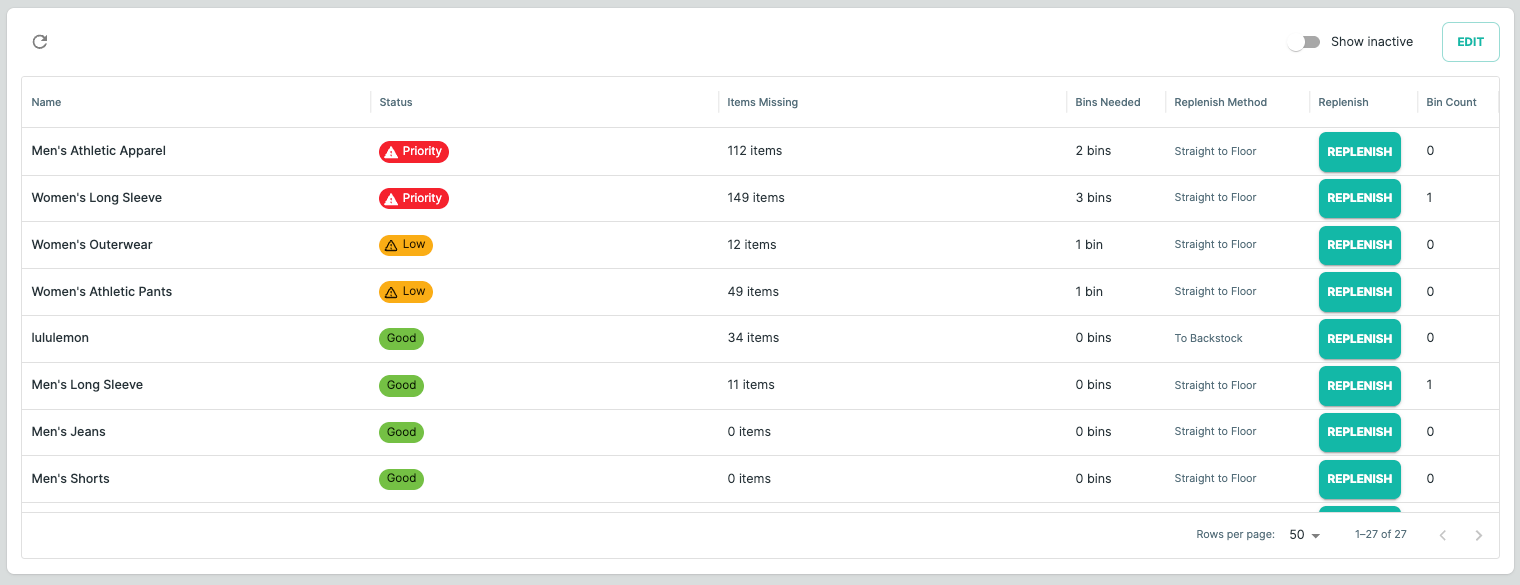
In this example, the section is set Straight to Floor, meaning items purchased from vendors go directly to the sales floor.
When those items are received, they reduce the Items Missing count.
Values from Screenshot:
- Items Missing = 112
- Average Items per Bin = 40
Based on these values, Rack Health recommends 2 Bins.
This is because:
- 1 bin ≈ 40 items
- 2 bins ≈ 80 items
After replenishing 2 bins, the remaining missing inventory would be:
112 - 80 = 32 items
Since 32 items is 80% of the Average Items per Bin, Rack Health does not yet recommend another bin. Rack Health only recommends another bin once the missing count reaches 90% of the Average Items per Bin.
For this section, that would be 36 items missing. Once the Items Missing value reaches 36, an additional bin will be recommended.
FAQs
What if I downsized my rack space?
If rack space is reduced, Rack Health will still show missing inventory based on the previous counts. Downsizing a rack works the same way as replenishing it.
For example:
- If Rack Health shows 60 items missing
- The rack is downsized, so those items are no longer needed
In this case, you should record the change as a replenishment.
To update Rack Health
- Select Replenish
- Enter the number of bins needed to bring the rack to full/0 items missing
This updates Rack Health so that the section is full, even though the change came from reduced rack space rather than adding inventory.
Was this article helpful?
That’s Great!
Thank you for your feedback
Sorry! We couldn't be helpful
Thank you for your feedback
Feedback sent
We appreciate your effort and will try to fix the article